

Typos break spreadsheets. One person writes “Done”, another “done.”, a third “Finished”, and suddenly your filters and pivot tables count three different statuses. A drop-down list fixes that by letting people pick from options you choose. It takes about a minute to set up in Excel, and it works in Microsoft 365, Excel 2021, 2019, 2016 and Excel for the web.

How to create a drop-down list in Excel
The feature lives under Data Validation, which is why many people never find it.
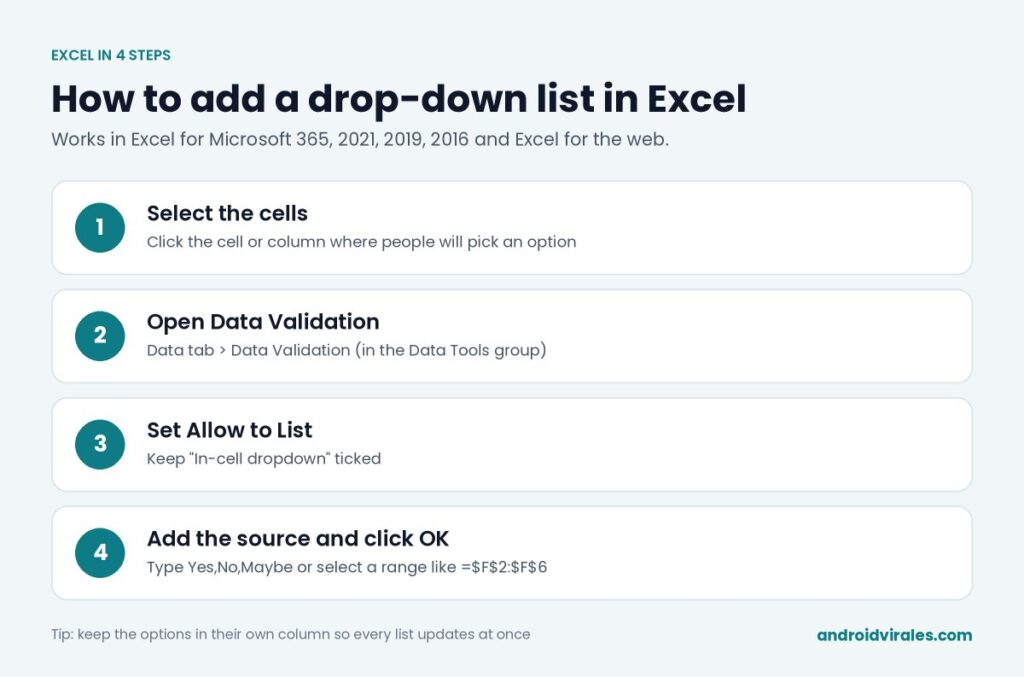
- Select the cell or cells where you want the drop-down. To cover a whole column of entries, select from the first data row down as far as you need.
- Go to the Data tab and click Data Validation in the Data Tools group. (If you see a small arrow instead, click the top half of the button.)
- In the Settings tab, open the Allow box and choose List.
- Make sure In-cell dropdown is ticked.
- In the Source box, enter your options. You have two choices, explained below.
- Click OK.
Click one of the cells and a small arrow appears on the right. That’s your drop-down.
Option A: Type the items directly
For short lists that rarely change, type the options in the Source box separated by commas:
Not started,In progress,Done
Don’t add spaces after the commas unless you want them in the values. This method is quick, but changing the list later means editing the Data Validation settings again.
Option B: Use a range of cells (recommended)
For anything longer, or anything that might change, put the options in cells and point the list at them.
- Type each option in its own cell, for example in F2 to F6. Many people use a separate sheet called “Lists” to keep things tidy.
- In the Source box, click the arrow button and select those cells, or type the reference, such as
=$F$2:$F$6or=Lists!$A$2:$A$6.
Now when you change a value in that range, every drop-down that uses it updates automatically.
Make the list grow on its own
If you’ll keep adding options, turn the source range into an Excel table first: click inside it and press Ctrl + T. Then select the table column’s cells as the Source. When you add a new item at the bottom of the table, the range expands and the new option shows up in your drop-downs.
Add a helpful message and block wrong entries
Two other tabs in the Data Validation window make your list friendlier:
- Input Message: shows a small tip when someone selects the cell, such as “Pick the task status from the list.”
- Error Alert: controls what happens if someone types something that isn’t in the list. Stop blocks it completely. Warning and Information let people override it, which is useful when the list isn’t complete yet.
How to edit or remove a drop-down list
Select the cells, go back to Data > Data Validation and change the Source. To apply your changes to every cell using the same list, tick Apply these changes to all other cells with the same settings before clicking OK.
To remove the drop-down, select the cells, open Data Validation and click Clear All. The values already chosen stay in the cells.
Copy a drop-down to other cells
Copy a cell that has the list with Ctrl + C. Select the new cells, then use Home > Paste > Paste Special, choose Validation and click OK. This copies the drop-down without overwriting any existing values or formatting.
Common problems
The arrow doesn’t appear
Check that In-cell dropdown is ticked. Also check File > Options > Advanced and make sure objects aren’t hidden under the display options for this workbook.
New options don’t show up
Your Source points to a fixed range, and the new item is outside it. Extend the range or use the table method above.
Blank lines appear in the list
The Source range includes empty cells. Shrink it so it only covers the filled cells.
Where to go next
Clean, consistent entries make the rest of Excel easier. Once your statuses come from a list, a pivot table can count them instantly, and XLOOKUP can pull matching details from another sheet. If you inherited a messy list, remove the duplicates before turning it into a drop-down source.
Common questions
Can a drop-down list allow more than one choice per cell?
Not by default. Selecting a new option replaces the old one. Multi-select lists need a macro, which most shared workbooks are better off without.
Does it work in Excel on the web and on phones?
Yes. Excel for the web can create and edit drop-down lists, and the Excel mobile apps show them when you tap the cell.
Is there a limit on how many items a list can have?
Typed lists are limited to 255 characters in the Source box. A cell range can hold far more, which is another reason to use one.