

Adobe Audition is a fine audio editor, but it comes with a Creative Cloud subscription, and most people only need a fraction of what it does: trim a recording, remove background hiss, balance the volume, export an MP3. Those jobs don’t require a paid tool. The free programs below cover podcasts, voice-overs, YouTube audio and music cleanup, and a couple of them are used by professionals every day.
First, what do you actually need?
- Quick edits: cutting silences, fixing levels, converting formats. A light editor is enough.
- Voice cleanup: removing noise, hum and echo from spoken audio.
- Multitrack work: mixing voices, music and sound effects on separate tracks, often alongside video.
Keep your main job in mind while reading. The best tool for a podcast isn’t the best one for a short film.
1. Audacity: the default choice
Audacity is free, open source and runs on Windows, macOS and Linux. It records from a microphone, edits multiple tracks and exports to MP3, WAV, FLAC and other formats. For podcasters and voice-over work, it covers nearly everything Audition does for spoken audio.
Features people use most:
- Noise Reduction (Effect > Noise Removal and Repair): select a few seconds of background noise as a sample, then apply it to the whole track.
- Normalize and Compressor to even out loud and quiet parts.
- Truncate Silence to remove long pauses automatically.
- Support for plugins (VST3, LV2 and others) when the built-in effects aren’t enough.
Downside: the interface feels technical at first, and some effects can’t be previewed live while you adjust them.
2. Ocenaudio: easiest for quick edits
Ocenaudio is a free editor built for speed. Its standout feature is real-time effect preview: move a slider and hear the change immediately, which makes equalizing or reducing noise much faster to get right. It also handles very large files smoothly.
Good for: trimming interviews, cleaning up voice notes and preparing audio clips.
Downside: it’s a single-track editor, so it isn’t suited to mixing several voices and music together.
3. DaVinci Resolve (Fairlight page): pro audio for video
DaVinci Resolve is best known as a free video editor, but its Fairlight page is a full audio workstation. It offers multitrack mixing, built-in effects, voice cleanup tools and precise automation. If your audio ends up in a video, editing it in the same program saves a lot of exporting back and forth.
Good for: YouTubers, filmmakers and anyone mixing dialogue, music and effects for video.
Downside: it’s heavy. It needs a reasonably powerful PC with a decent graphics card, and the learning curve is steep. On an older laptop, see our list of video editors for low-end PCs instead. We also compare Resolve with other options in our guide to free Premiere Pro alternatives.
4. Tenacity: an Audacity-style alternative
Tenacity is a community-made fork of Audacity. It looks and works much the same, and some users prefer it for its community-led development. If you’re comfortable with Audacity, there’s little to relearn.
Downside: it’s a smaller project, so updates and documentation depend on volunteers.
5. Adobe Podcast Enhance: one-click voice cleanup
Adobe’s free web tool takes a spoken recording and makes it sound closer to studio quality with a single upload. It works surprisingly well on voices recorded with a laptop microphone or in an echoey room.
Good for: rescuing a rough voice recording without learning any settings.
Downside: it’s for speech only, the free tier has limits on length and number of files, and your audio is uploaded to Adobe’s servers. It can also make voices sound slightly processed, so compare the result with the original.
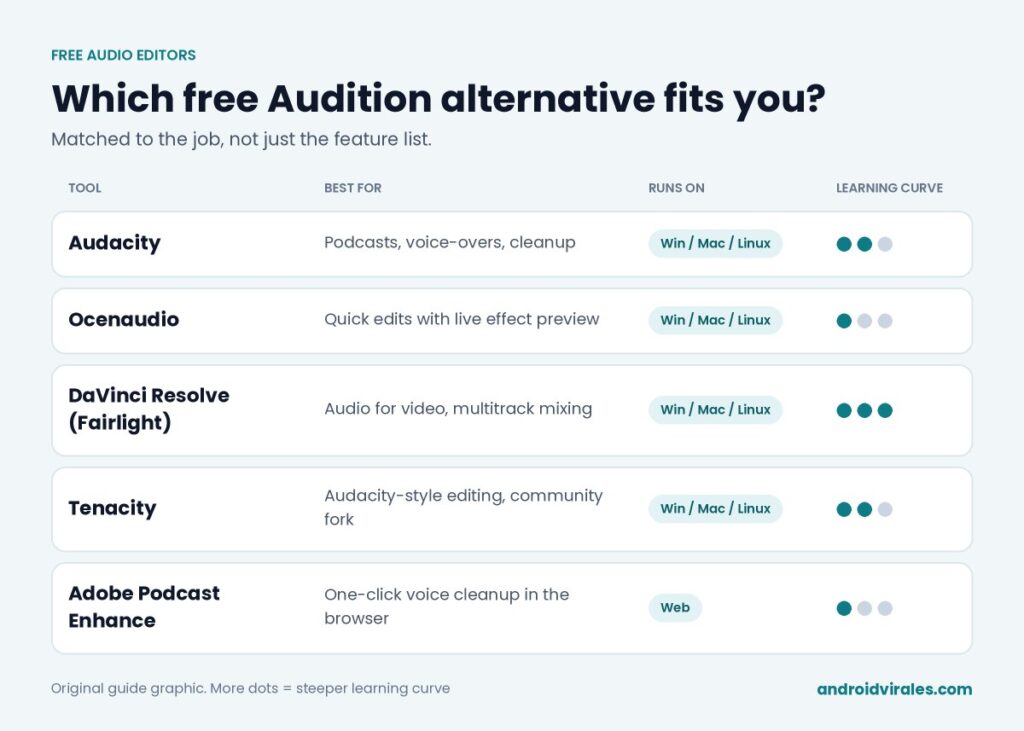
Which one should you choose?
| If you want to… | Use |
|---|---|
| Edit and clean podcasts or voice-overs | Audacity |
| Make fast edits with live preview | Ocenaudio |
| Mix audio for a video project | DaVinci Resolve (Fairlight) |
| Use Audacity’s workflow from a community fork | Tenacity |
| Fix a bad voice recording in one click | Adobe Podcast Enhance |
Tips for switching from Audition
- Export your finished projects first. Audition’s project files won’t open in these programs. Export each track as WAV so you can rebuild the mix if needed.
- Record clean audio. No editor fixes everything. A quiet room and a microphone placed close to your mouth make more difference than any effect.
- Keep the original. Work on a copy so you can start over if an effect goes too far.
If you’re recording a tutorial or gameplay with voice, pair your editor with one of the best free screen recorders for Windows.
Questions readers ask
Is Audacity really free?
Yes. It’s open source, with no paid version, no watermark and no time limit. Download it from the official website to avoid bundled software.
Can these tools remove background music from a voice?
Partly. Simple noise reduction won’t do it, but some editors and plugins now offer AI-based separation of voice and music. Results vary with the recording.
Which option is closest to Audition’s multitrack view?
DaVinci Resolve’s Fairlight page. Audacity handles multiple tracks too, but Fairlight’s mixer and routing feel much more like a professional workstation.