


You press the Windows key, start typing the name of an app, and nothing appears. Or the search box opens as a blank panel, or it refuses to accept any text at all. Windows 11 search depends on a small background process and a file index, and when either gets stuck, search stops working. Both can be reset without reinstalling anything.
Work through these fixes in order and test search after each one.

Fix 1: Restart the Search process
The search panel runs as its own process. Ending it forces Windows to start a fresh copy.
- Press Ctrl + Shift + Esc to open Task Manager.
- In the Processes tab, look for Search (it may appear as SearchHost.exe in the Details tab).
- Right-click it and choose End task.
Click the search icon again. Windows relaunches the process automatically, and in many cases that’s the whole fix.
Fix 2: Restart Windows Explorer
Search lives inside the taskbar, which is part of Windows Explorer. In Task Manager, find Windows Explorer, right-click it and choose Restart. If the whole taskbar is acting up, not just search, our guide to the Windows 11 taskbar not working covers the rest.
Fix 3: Make sure the search box isn’t turned off
If the search icon is missing from the taskbar entirely, it may be hidden. Go to Settings > Personalization > Taskbar and set Search to show a search icon or box. You can always search with Windows + S while you check.
Fix 4: Run the Search and Indexing troubleshooter
- Open Settings > System > Troubleshoot > Other troubleshooters.
- Find Search and Indexing and click Run. On newer versions of Windows 11 this may open the Get Help app instead, which runs the same checks.
- Tick the problem you’re seeing, such as “Files don’t appear in search results” or “Can’t start a search,” and follow the prompts.
Fix 5: Check the Windows Search service
The index that makes search fast is maintained by a Windows service. If it’s stopped or disabled, search slows down or returns nothing.
- Press Windows + R, type
services.mscand press Enter. - Find Windows Search and double-click it.
- Set Startup type to Automatic (Delayed Start).
- If the service isn’t running, click Start. If it is, right-click it in the list and choose Restart.
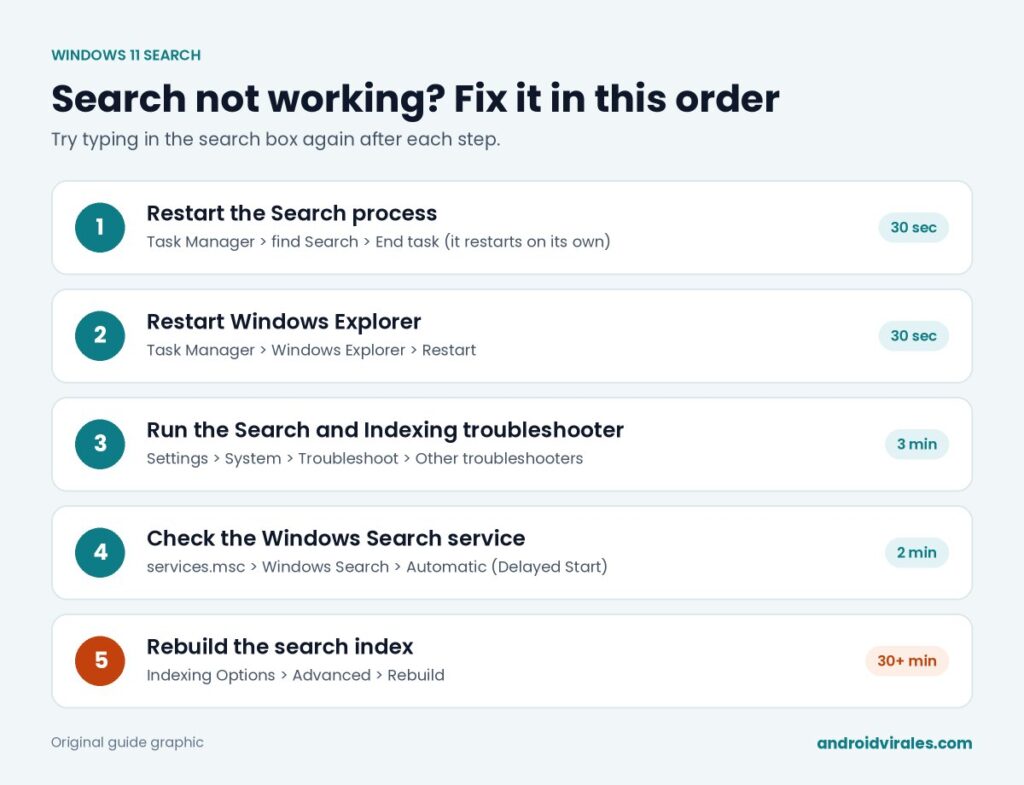
Fix 6: Rebuild the search index
When search opens but can’t find files or apps you know exist, the index is probably damaged. Rebuilding it starts from scratch.
- Go to Settings > Privacy & security > Searching Windows.
- Scroll down and click Advanced indexing options.
- Click Advanced, then Rebuild, and confirm.
Rebuilding can take anywhere from several minutes to a few hours, depending on how many files you have. Search results will be incomplete until it finishes, so it’s best done before a break. The index also needs free disk space. If drive C is nearly full, free up some space first.
Fix 7: Install updates and repair system files
Search bugs are regularly fixed in Windows updates. Go to Settings > Windows Update and install everything available. If updates won’t install, see our stuck Windows Update fix.
If search still fails, repair system files. Open Terminal as administrator and run DISM /Online /Cleanup-Image /RestoreHealth, then sfc /scannow, and restart.
Why does Windows search keep breaking?
If you fix it and it breaks again a few days later, look for something that keeps interfering. Common culprits are third-party “PC cleaner” or tweaking apps that disable services, a nearly full drive, and Start menu replacement tools. Removing those usually makes the fix stick.
Common questions
Is it safe to end the Search process?
Yes. It only controls the search panel. Windows restarts it the next time you open search.
Will rebuilding the index delete my files?
No. The index is just a catalog that helps Windows find files quickly. Rebuilding it doesn’t touch the files themselves.
Search works for apps but not files. Why?
The folder probably isn’t indexed. In Searching Windows, choose Enhanced to index your whole PC, or add the folder under Customize search locations.