
Clicking the Start button does nothing. The taskbar icons won’t open, the search box ignores you, or the whole bar has simply vanished from the bottom of the screen. A broken taskbar makes Windows 11 feel unusable, but the fix is usually quick. In most cases the problem is Windows Explorer, the process that draws the taskbar, and restarting it takes about thirty seconds.
The fixes below are ordered from fastest to most involved. Stop as soon as yours works.
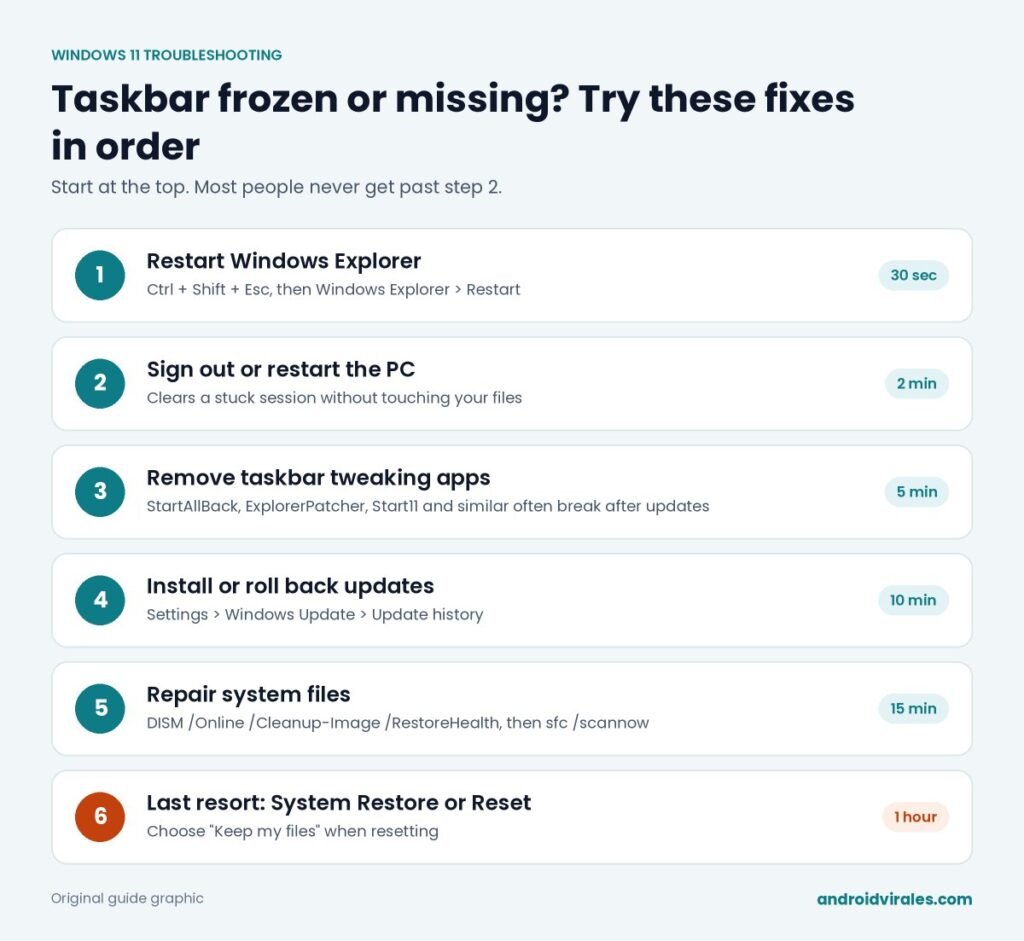
Fix 1: Restart Windows Explorer
The taskbar, Start menu and File Explorer all run inside one process called explorer.exe. When it hangs, the taskbar freezes with it. Restarting it is safe and doesn’t close your other programs.
- Press Ctrl + Shift + Esc to open Task Manager.
- In the Processes tab, find Windows Explorer. Type “explorer” in the search box at the top if the list is long.
- Right-click it and choose Restart.
The screen may flicker and the taskbar will disappear for a second before coming back. If Task Manager won’t open with that shortcut, press Ctrl + Alt + Delete and pick Task Manager from the menu.
Taskbar gone completely? In Task Manager, click Run new task, type explorer.exe and press Enter. That starts the process again if it crashed.
Fix 2: Sign out or restart the PC
If restarting Explorer didn’t stick, a full sign-out clears the rest of your session. Press Ctrl + Alt + Delete, choose Sign out, then log back in. If that doesn’t help, restart from the same menu using the power icon in the bottom-right corner.
Fix 3: Check that the taskbar isn’t just hidden
Sometimes the taskbar is working fine and set to hide itself. Move your mouse to the bottom edge of the screen. If it slides up, go to Settings > Personalization > Taskbar > Taskbar behaviors and untick Automatically hide the taskbar. You can open Settings with Windows + I even when the taskbar is frozen.
Fix 4: Remove taskbar customization apps
Programs like StartAllBack, ExplorerPatcher, Start11 or other tools that bring back the Windows 10 look change how the taskbar works. After a big Windows update, they often break until the developer releases a fix. This is one of the most common causes of a taskbar that suddenly stops responding after an update.
- Press Windows + I to open Settings.
- Go to Apps > Installed apps.
- Find the customization tool, click the three dots and choose Uninstall.
- Restart the PC.
If the taskbar works afterwards, check the tool’s website for an updated version before reinstalling it.
Fix 5: Install or roll back Windows updates
Taskbar bugs are sometimes caused by a bad update and fixed by the next one. Go to Settings > Windows Update and click Check for updates. Install everything, including optional quality updates, and restart.
If the problem started right after an update, you can remove it instead. Go to Settings > Windows Update > Update history > Uninstall updates, select the most recent one and click Uninstall. If updates themselves refuse to install, see our guide to fixing a stuck Windows Update.
Fix 6: Repair Windows system files
Damaged system files can break the Start menu and taskbar. Windows has two built-in repair tools that work together.
- Press Ctrl + Shift + Esc, click Run new task, type
wt(orcmd), tick Create this task with administrative privileges and press Enter. - Run
DISM /Online /Cleanup-Image /RestoreHealthand wait for it to reach 100%. It can pause for a while, which is normal. - Then run
sfc /scannow. - Restart the PC when both finish.
Running DISM first matters. It repairs the copy of Windows files that SFC uses as a reference, so SFC can then fix the damaged ones.
Fix 7: Test with a new user account
If the taskbar works for a new user, the problem is limited to your profile rather than Windows itself. Go to Settings > Accounts > Other users > Add account and create a local account. Sign in to it and check the taskbar. If it works there, you can move your files to the new account, which is often quicker than chasing a damaged profile.
Fix 8: System Restore or Reset this PC
When nothing else works, roll Windows back. Press Windows + R, type rstrui and press Enter to open System Restore. Pick a restore point from before the taskbar broke. Your personal files stay untouched, but apps installed after that date will be removed.
The last option is Settings > System > Recovery > Reset this PC. Choose Keep my files. Windows reinstalls itself and keeps your documents, but you’ll need to reinstall your programs. Back up anything important first.
Why does the taskbar keep freezing?
If the problem comes back every few days, look at the bigger picture. A drive that’s almost full, too many startup programs or a PC short on memory can make Explorer hang repeatedly. Our guides on freeing up space on drive C and why a computer gets slow cover those causes.
Quick answers
Will restarting Windows Explorer close my programs?
No. Open apps keep running. Only File Explorer windows close, and the taskbar reloads.
Can I use my PC while the taskbar is broken?
Yes. Alt + Tab switches between open windows, Windows + I opens Settings, and Windows + R lets you launch programs by name.
Do I lose files with System Restore?
No. System Restore changes system files, drivers and installed apps, not your documents, photos or downloads.