
The printer is on, the lights look normal, and it was working yesterday. But Windows 11 insists it’s “Offline” and your document sits in the queue going nowhere. This is one of the most common printer problems on Windows, and the printer itself is usually fine. The issue tends to be a setting, a stuck print job or a connection that changed after a router restart.
Fix 1: Wake the printer and check the connection
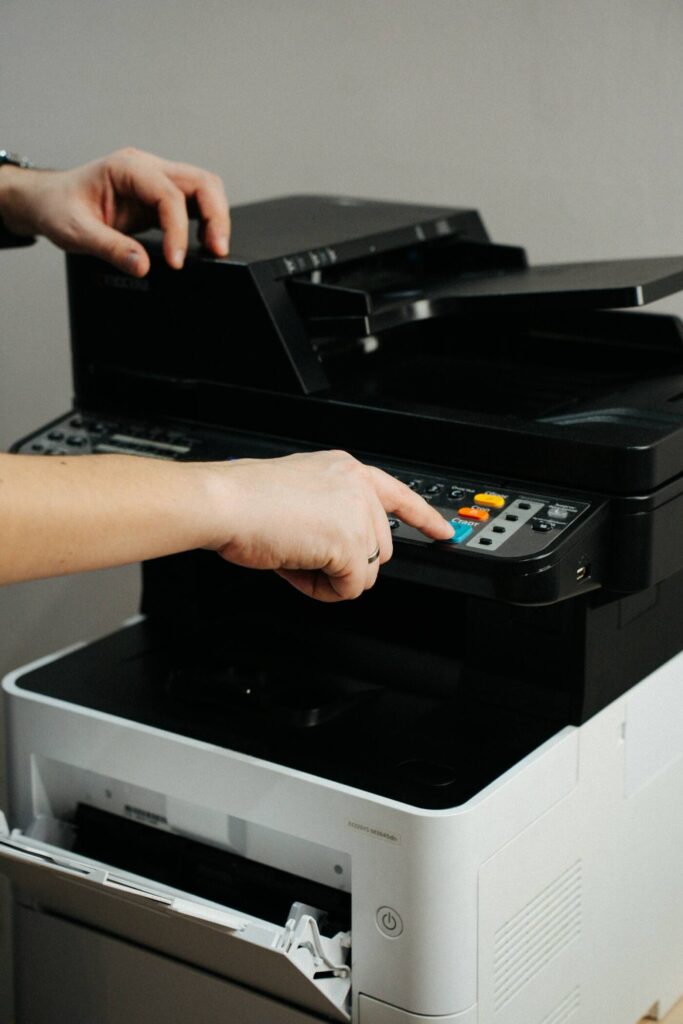
- Turn it off and on. Many printers go into a deep sleep mode that Windows reads as offline.
- USB printers: unplug the cable and plug it into a different port, directly on the PC rather than a hub.
- Wi-Fi printers: make sure the printer and the PC are on the same network. Many printers only support 2.4 GHz Wi-Fi, so check that it didn’t lose its connection when the router changed bands or passwords.
Most printers can print a network or configuration page from their own menu. It shows whether the printer is connected and which IP address it has. Keep that page handy for Fix 6.
Fix 2: Turn off “Use Printer Offline”
Windows has a setting that keeps a printer offline on purpose, and it sometimes gets switched on by itself.
- Go to Settings > Bluetooth & devices > Printers & scanners.
- Click your printer, then Open print queue.
- Open the Printer menu at the top and make sure Use Printer Offline isn’t ticked.
Fix 3: Clear the print queue and restart Print Spooler
One stuck document can block everything behind it and make the printer look offline.
- In the print queue, open the Printer menu and choose Cancel All Documents.
- Press Windows + R, type
services.mscand press Enter. - Find Print Spooler, right-click it and choose Stop.
- Open File Explorer, go to
C:WindowsSystem32spoolPRINTERSand delete everything inside that folder. Don’t delete the folder itself. - Back in Services, right-click Print Spooler and choose Start.
Fix 4: Run the printer troubleshooter
Go to Settings > System > Troubleshoot > Other troubleshooters and run Printer. On newer builds it opens the Get Help app. It checks the spooler, drivers and connection, and often fixes the problem on its own.
Fix 5: Update or reinstall the printer driver
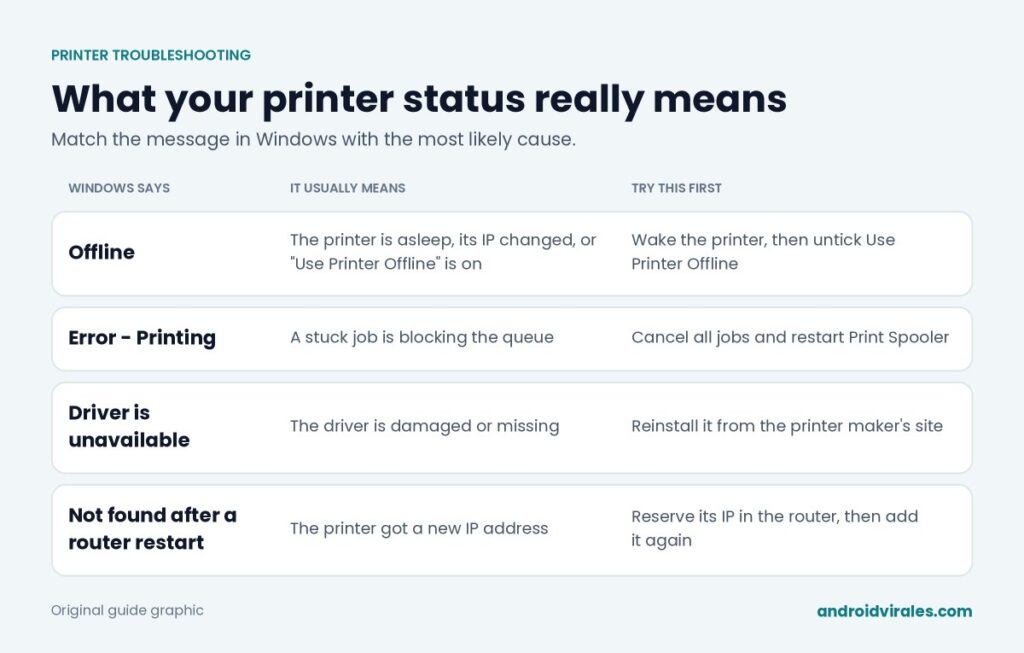
A damaged driver shows up as “Driver is unavailable” or an endless offline status. Download the latest driver or the full software package from your printer maker’s official website (HP, Canon, Epson, Brother and so on), using your exact model number. Then install it and restart the PC.
Fix 6: Fix the IP address problem (Wi-Fi and network printers)
This is the hidden cause behind many “offline after a router restart” cases. Your router gives the printer an IP address, and after a restart it may give it a different one. Windows keeps looking at the old address.
- Find the printer’s current IP address on its configuration page or display.
- In Windows, open the printer’s Printer properties and go to the Ports tab. If it uses a port with an old IP, add a Standard TCP/IP Port with the new address.
- To stop it happening again, sign in to your router and set a DHCP reservation (sometimes called address reservation) so the printer always gets the same IP.
If the PC itself keeps dropping off the network, see laptop Wi-Fi keeps disconnecting.
Fix 7: Remove the printer and add it again
In Settings > Bluetooth & devices > Printers & scanners, click the printer and choose Remove. Restart the PC, then click Add device and let Windows find it again. If it doesn’t appear, choose Add manually and enter its IP address.
Stop it from happening again
- Reserve the printer’s IP address in your router.
- Turn off deep sleep or energy saving in the printer’s own settings if it keeps dropping off.
- Keep Windows and the printer driver up to date. If updates get stuck, use our Windows Update fix.
Questions readers ask
Why does my printer go offline every day?
Usually because of sleep mode or a changing IP address. Fix 6 and the sleep setting above solve most repeat cases.
Is deleting files in the spool folder safe?
Yes, as long as Print Spooler is stopped first. Those files are only pending print jobs.
My printer prints from my phone but not my PC. Why?
The printer works, so the problem is on the PC side. Focus on Fix 2, Fix 3 and Fix 6.