

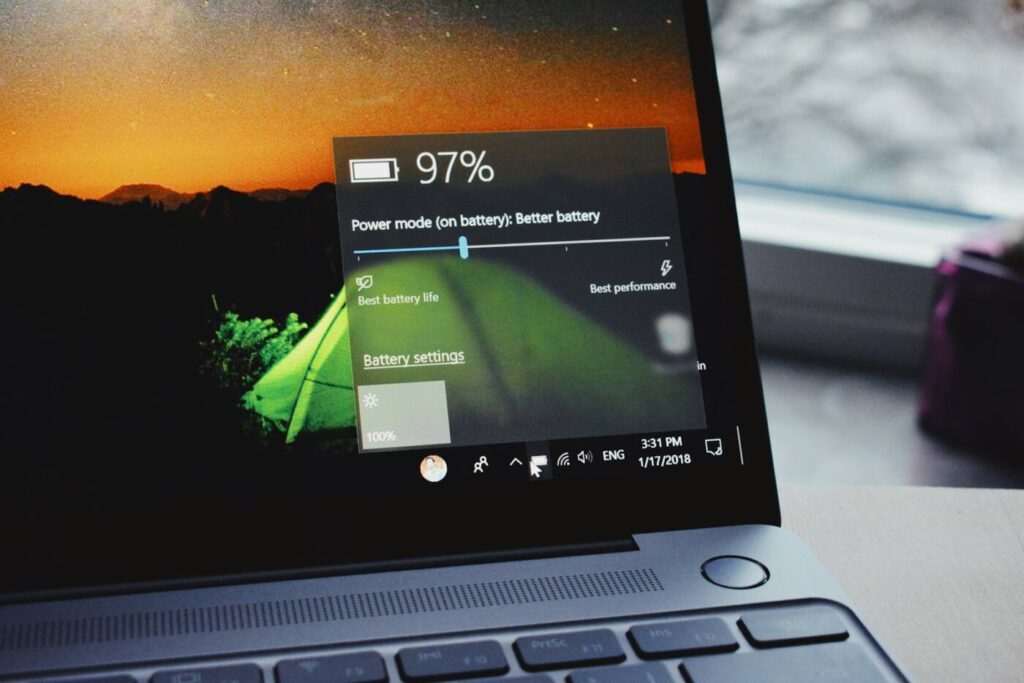
Your laptop used to last most of a workday. Now it’s begging for a charger after two hours, even when you’re only browsing. When a laptop battery drains fast on Windows 11, the cause is usually a mix of settings, background apps and normal battery wear. The fixes below go from quickest to most thorough. Work through them in order and you’ll often get hours back without buying anything.
Step 1: See what’s using your battery
Before changing anything, find the culprit. Windows 11 tracks battery use for every app.
- Open Settings > System > Power & battery.
- Click Battery usage.
- Switch the view to Last 7 days and look at the list of apps.
If a single app sits at the top while you barely use it, that’s your first target. Common offenders are browsers with many tabs, cloud sync tools, game launchers and chat apps that run all day.
Step 2: Change the power mode
In the same Power & battery page, find Power mode. Set it to Best power efficiency when you’re on battery. The difference can be large on laptops that boost the processor aggressively in the other modes.
Step 3: Turn on Energy saver
Energy saver (called Battery saver on older Windows 11 versions) reduces background activity and lowers some visual effects.
- Go to Settings > System > Power & battery.
- Open Energy saver or Battery saver.
- Set it to turn on automatically at a level like 30%, or switch it on whenever you unplug.
You can also toggle it quickly from the Quick Settings panel with Win + A.
Step 4: Lower brightness and refresh rate
The screen is usually the single biggest power drain.
- Brightness: drop it to the lowest level that’s still comfortable. Going from 100% to around 60% makes a noticeable difference.
- Refresh rate: many newer laptops have 120 Hz or 144 Hz screens. Go to Settings > System > Display > Advanced display and choose 60 Hz when on battery. Some laptops offer a Dynamic option that does this automatically.
- Dark mode: on OLED screens, dark mode genuinely saves power. On regular LCD screens the effect is small.
Step 5: Stop apps running in the background
Some apps keep working after you close them.
- Go to Settings > Apps > Installed apps.
- Click the three dots next to an app and choose Advanced options (available for Microsoft Store apps).
- Under Background app permissions, choose Never for apps that don’t need to run in the background.
For regular desktop programs, check their own settings for options like “run in background” or “keep running when closed” and turn those off.
Step 6: Cut startup apps
Every program that starts with Windows uses power from the moment you log in. Open Settings > Apps > Startup and turn off anything you don’t need immediately. This also speeds up boot time, which we cover in our guide on why your computer is so slow.
Step 7: Switch off what you’re not using
- Bluetooth when no devices are connected. If you rely on it and it misbehaves, see our Bluetooth not working fix.
- Keyboard backlight, usually controlled with a function key.
- External devices powered over USB, like drives and phones being charged.
Step 8: Update Windows, drivers and BIOS
Power management bugs are often fixed in updates. Run Settings > Windows Update, then check Advanced options > Optional updates for driver updates. Your laptop maker’s support app or website (Dell, HP, Lenovo, ASUS, Acer) often has newer chipset, graphics and BIOS updates. If Windows Update gets stuck along the way, follow our Windows Update stuck fix.
Step 9: Check battery health with a battery report
If none of the settings help, the battery itself may be worn. Windows can create a detailed report.
- Right-click the Start button and open Terminal.
- Type
powercfg /batteryreport /output "C:battery-report.html"and press Enter. - Open C:battery-report.html in your browser.
Compare Design Capacity with Full Charge Capacity. If the full charge capacity is much lower, for example below 70% of the design capacity, the battery has lost a lot of its health. No setting will bring that back. A replacement battery is the real fix.
Step 10: Check for drain during sleep
If the battery drops overnight with the lid closed, the laptop may not be sleeping properly. Run powercfg /sleepstudy in Terminal (on supported laptops) to see what kept it awake. A simple workaround is to use hibernate instead of sleep. Go to Control Panel > Power Options > Choose what closing the lid does and set it to Hibernate. If hibernate isn’t listed, enable it in that window first.
Habits that keep a battery healthy longer
- Avoid running the laptop hot on a bed or sofa. Heat ages batteries faster.
- If your laptop maker’s app offers a charge limit (often 80%), use it when you’re plugged in most of the time.
- Don’t regularly drain the battery to 0%.
Battery questions people ask
Why did my battery get worse after a Windows update?
Right after an update, Windows indexes files and finishes installing components in the background, which uses extra power for a day or two. If drain continues, check for new driver updates.
How long should a laptop battery last?
Most laptop batteries hold up well for two to four years, depending on use and heat, before capacity drops noticeably.
Is it bad to leave my laptop plugged in?
Modern laptops stop charging when full, but keeping the battery at 100% and warm all the time speeds up wear. A charge limit setting helps.
Quick recap
Start with the battery usage list to find the app that’s draining power, then set Best power efficiency, lower the brightness and refresh rate, and trim background and startup apps. If the battery report shows heavy wear, settings can only do so much. At that point, a new battery is worth it.