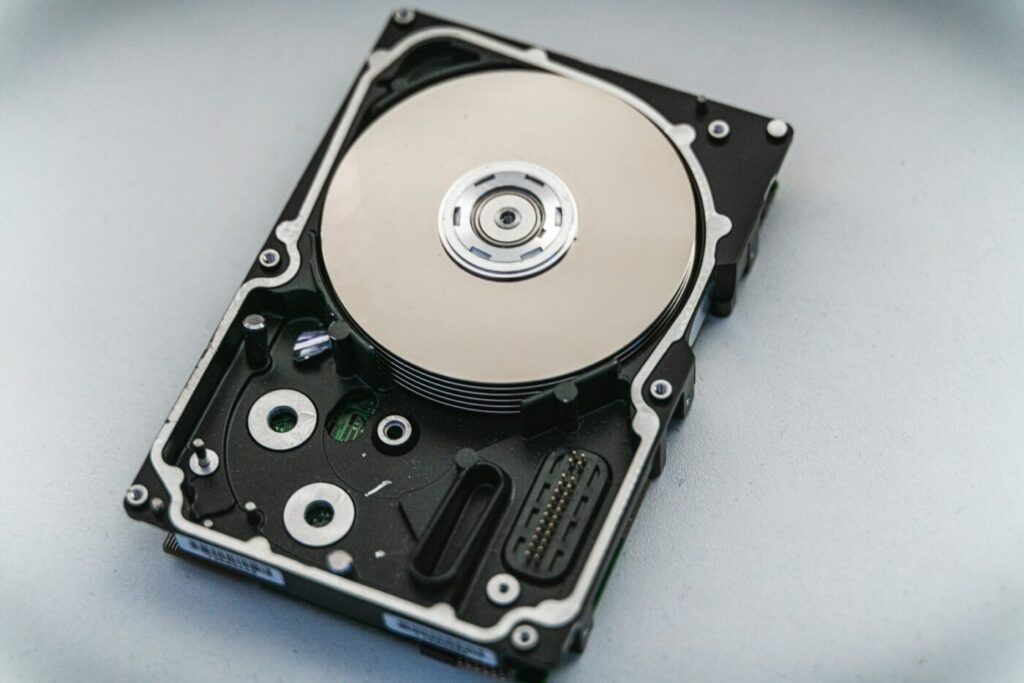
Most people only think about backups after a laptop dies, a drive fails or ransomware locks their files. By then it’s too late. The good news is that a solid backup costs nothing: Windows has free tools built in, and several reputable programs offer free versions. This guide compares the best free backup software for Windows and explains how to set up a backup you can actually rely on.
File backup vs system image: know the difference
Backup tools usually do one of two things, and it helps to know which one you need:
- File backup copies your documents, photos and other folders. If your PC dies, you install Windows on a new computer and restore your files.
- System image copies the entire drive, including Windows, programs and settings. If the drive fails, you can restore the whole PC to the way it was.
For most home users, a reliable file backup is the priority. A system image is a nice extra if reinstalling all your programs would take you days.

Start with the 3-2-1 rule
Whatever software you choose, the 3-2-1 rule is the simplest way to stay safe:
- 3 copies of important files (the original plus two backups)
- 2 different types of storage, such as an external drive and the cloud
- 1 copy kept off-site, so a fire or theft at home doesn’t take everything
The best free backup software for Windows
Free editions and their limits change from time to time, so check each official website for current details before installing.
1. Windows Backup and OneDrive (built into Windows 11)
Best for: people who want something simple that runs on its own.
Windows 11 includes the Windows Backup app, which can back up your Desktop, Documents and Pictures folders to OneDrive, along with settings, Wi-Fi passwords and a list of your installed apps. When you sign in to a new PC with the same Microsoft account, it can bring those things back.
- Pros: already installed, automatic, gives you an off-site copy.
- Cons: the free OneDrive plan has limited storage, and it doesn’t create a full system image.
2. File History (built into Windows 10 and 11)
Best for: automatic, versioned backups to an external drive.
File History saves copies of your files to an external drive every hour by default and keeps older versions, so you can recover a document from last week before you overwrote it. Open it from Control Panel > System and Security > File History, connect an external drive and click Turn on.
- Pros: free, automatic, keeps previous versions of files.
- Cons: only covers files, not programs or Windows itself.
3. Veeam Agent for Microsoft Windows FREE
Best for: full system images without paying.
Veeam is a well-known name in business backup, and its free Windows agent can back up the entire computer, specific drives or folders to an external drive or network storage. It also creates recovery media you can boot from if Windows won’t start.
- Pros: reliable image backups, scheduling, recovery media.
- Cons: the interface is more technical than consumer tools.
4. AOMEI Backupper Standard
Best for: beginners who want images and file backups in one friendly program.
The free Standard edition covers system, disk, partition and file backups, plus disk cloning, which is handy when you upgrade to a new SSD.
- Pros: easy wizards, cloning included.
- Cons: some features are reserved for paid editions, and you’ll see upgrade offers.
5. Duplicati
Best for: encrypted backups to your own cloud storage.
Duplicati is free and open source. It encrypts your files before uploading them to services such as Google Drive, OneDrive, Backblaze B2 or your own server, and it only uploads the parts of files that changed.
- Pros: strong encryption, works with many cloud services, no license cost.
- Cons: setup takes a little longer, and it’s for files, not system images.
A note on Macrium Reflect: it was a popular free choice for years, but its free edition was discontinued, so new users would need a paid license. That’s why it isn’t on this list.

Which one should you choose?
- Simplest possible setup: Windows Backup with OneDrive, plus File History to an external drive.
- You want to restore the whole PC after a crash: Veeam Agent FREE or AOMEI Backupper Standard.
- You want private, encrypted cloud backups: Duplicati.
A strong combination for most people: File History or AOMEI to an external drive for fast restores, and OneDrive or Duplicati for an off-site copy.
Set it up right
- Get an external drive at least as large as the data you want to protect, ideally twice as large to keep older versions.
- Schedule backups automatically. Backups you have to remember to run eventually stop happening.
- Disconnect the external drive when the backup finishes. Ransomware can encrypt any drive that’s plugged in.
- Test a restore once in a while. Open your backup and recover one file to make sure it works.
- Create recovery media if you use a system image tool, and keep that USB drive somewhere safe.
Backups pair well with good security habits. See our guide to the best free antivirus for Windows, and if your drive is running out of room before you even start, follow our steps to free up space on drive C.
FAQ
Does Windows have built-in backup software?
Yes. Windows 10 and 11 include File History for file backups, and Windows 11 adds the Windows Backup app, which saves folders and settings to OneDrive. The older Backup and Restore (Windows 7) tool can still create a system image, though Microsoft no longer develops it.
How often should I back up my computer?
For files you work on every day, automatic backups every hour or every day are best. A full system image once a week or once a month is enough for most people.
Is cloud backup or an external drive better?
Use both. An external drive restores large amounts of data quickly, while a cloud copy survives theft, fire or a drive failure at home.
Can free backup software protect against ransomware?
It helps a lot, as long as at least one backup is disconnected or stored in the cloud with version history. If the backup drive stays plugged in all the time, ransomware can encrypt it too.