
The Hook: That Moment When Your Phone Feels… Boring
I’ll never forget the day I looked at my phone and felt absolutely nothing.
It was a Tuesday morning. I grabbed my Samsung Galaxy, unlocked it, and stared at the same grid of app icons I’d been staring at for two years. Gray folders. A wallpaper I’d picked in 2021. Widgets I never used. It felt like walking into a room with beige walls and no furniture — functional, but soul-crushing.
I’d just come back from a coffee shop where my friend showed me his home screen. It was clean. Organized. Actually beautiful. He had a weather widget that looked like art, app icons that matched his wallpaper, and everything he needed was one tap away. Meanwhile, I was still digging through three swipes of app drawers to find my banking app.
That was my wake-up call. I spent the next three weeks deep-diving into Android customization — experimenting with launchers, icon packs, widgets, and hidden settings. I broke things. I fixed them. I learned what actually works and what’s just influencer fluff.
This guide is everything I wish I’d known on day one. No generic tips you’ve read a hundred times. Just real, actionable advice from someone who’s actually done the work.
Why Most Android Users Never Customize (And Why That’s a Mistake)
Here’s the truth: Android is the most customizable mobile operating system on the planet. iPhone users can change their wallpaper and rearrange icons. Android users can transform their entire interface.
But most people don’t. Why?
Three reasons:
-
It feels overwhelming. Open the Play Store, search “launcher,” and you’ll find 50 options. Where do you even start?
-
Fear of breaking something. Nobody wants to mess up their phone and lose data or make it slower.
-
They don’t know what’s possible. Most users think customization means “changing your wallpaper.” They have no idea you can redesign the entire experience.
I fell into all three traps. I thought launchers were for “tech people.” I worried I’d brick my phone. And I genuinely didn’t know that I could have a home screen that felt mine — not Google’s, not Samsung’s, but mine.
The reality? Customizing your Android home screen isn’t risky if you do it right. It doesn’t require rooting. And once you learn the basics, it takes less than an hour to transform your phone completely.
What You’ll Need Before You Start
Before diving in, here’s what I recommend having ready:
-
A backup of your current setup. Most launchers let you export your layout, but screenshot your current home screen just in case.
-
A clear idea of what you want. Minimalist? Information-dense? Color-coordinated? Having a vision saves hours of tweaking.
-
Patience. Your first attempt won’t be perfect. Mine looked like a Pinterest fail. That’s normal.
Step 1: Choose the Right Launcher (This Changes Everything)
The launcher is the app that controls your home screen, app drawer, and gestures. Stock launchers (the one that comes pre-installed) are fine, but they’re intentionally limited. Third-party launchers unlock the real power.
My Top Picks (Based on Real Use)
Nova Launcher — This is what I use daily. It’s fast, stable, and insanely customizable. You can adjust grid sizes, icon sizes, gesture controls, animations, and more. The free version covers 90% of what you need. The Prime version ($5.99 one-time) adds gesture shortcuts and unread badges — worth every penny.
Niagara Launcher — Perfect if you want minimalism. It lists apps alphabetically on the side, keeps your screen clean, and is excellent for one-handed use. I used this for three months when I was trying to reduce screen time. It’s beautiful but not for power users who need quick access to everything.
Smart Launcher 6 — This one auto-categorizes your apps (Communication, Internet, Games, etc.) and adapts your theme colors to your wallpaper. Great for people who want a smart, organized look without manual sorting.
Action Launcher — Known for its “Quicktheme” feature that pulls colors from your wallpaper and applies them to UI elements. It also has “Shutters” — swipe an app icon to reveal its widget without cluttering your screen.
How to Install and Set Up a Launcher
-
Go to the Google Play Store and search for your chosen launcher.
-
Install it and open the app.
-
Tap “Set as Default Launcher” when prompted.
-
Your home screen will instantly change. Don’t panic — your apps are still there.
Pro tip: Before uninstalling a launcher, always switch back to your stock launcher first. Go to Settings > Apps > Default Apps > Home App and select your original launcher. Then uninstall safely.
Step 2: Design Your Layout (Grid Size, Dock, and Pages)
This is where most people go wrong. They install a launcher and immediately start adding widgets everywhere. That’s like painting walls before you’ve built the house.
Set Your Grid Size
Your grid determines how many icons fit on each screen. Stock launchers usually force a 4×5 or 4×6 grid. With Nova Launcher, I run a 5×7 grid on my main screen — more icons, less scrolling.
How to adjust: Nova Settings > Home Screen > Layout > Grid Size.
Beginner mistake: Going too dense. A 7×9 grid looks cool on screenshots but becomes impossible to tap accurately. Start with 5×6 and adjust from there.
The Dock: Your Command Center
The dock is the row of icons at the bottom of your screen — visible on every home screen page. This should hold your most-used apps.
My dock setup:
-
Phone
-
Messages
-
Chrome
-
Camera
-
App Drawer button (replaced with a gesture — swipe up anywhere)
I removed the app drawer button from my dock and set a swipe-up gesture to open it. That freed up a slot for an app I actually use.
How Many Home Screen Pages?
I used to have seven pages. It was a mess. Now I have two:
-
Page 1: Essential widgets and most-used apps
-
Page 2: Secondary apps organized in folders
Rule of thumb: If you have to swipe more than twice to find something, your layout is too complex.
Step 3: Pick a Cohesive Icon Pack
Nothing makes a home screen look amateur faster than mismatched icons. Stock icons from 20 different developers? It looks like a garage sale.
Best Icon Packs I’ve Personally Used
Whicons — Pure white icons. Minimal, clean, and work with almost any wallpaper. Free.
Lines — Icon outlines instead of filled shapes. Very modern. $1.99.
CandyCons — Colorful, rounded icons with a consistent design language. Great for playful setups. Free with in-app purchases.
Pix Material You — Dynamically changes colors based on your wallpaper. If you change wallpapers often, this keeps everything matching automatically.
Delta — My current favorite. Subtle, professional, and covers 5,000+ apps. $1.99.
How to Apply an Icon Pack
-
Long-press your home screen.
-
Tap Settings or Look and Feel (varies by launcher).
-
Find Icon Pack and select your downloaded pack.
-
If an app isn’t themed, long-press it, tap Edit, and manually select an icon.
Real talk: No icon pack covers every app. You’ll have 5–10 apps that look out of place. For those, I manually assign icons that visually match. It takes 2 minutes and makes a huge difference.
Step 4: Widgets That Actually Help (Not Just Look Pretty)
Widgets are the most powerful — and most abused — part of Android customization. I’ve seen home screens with 12 widgets that do nothing but show the time in three different fonts.
Widgets I Actually Use Daily
Google Keep widget — Shows my top 3 notes. I use it for grocery lists and quick reminders. One tap opens the note.
Weather & Clock widget (Chronus) — Displays time, weather, and my next calendar event. I spent $2.99 on the premium version, and it’s been worth it for three years.
Battery widget (KWGT custom) — Shows exact battery percentage and estimated time remaining. Critical when I’m traveling.
Music widget (Spotify) — Controls playback without opening the app. Essential for commutes.
How to Add Widgets
-
Long-press an empty area of your home screen.
-
Tap Widgets.
-
Scroll to the app you want and select the widget size.
-
Drag it to your desired location.
Widget placement strategy: Put your most important widget in the top-left. That’s where your eyes go first. I keep my calendar widget there because my schedule is my lifeline.
Custom Widgets With KWGT (For Advanced Users)
KWGT (Kustom Widget Maker) lets you build widgets from scratch. I use it for a custom battery indicator that matches my icon pack colors exactly.
Warning: KWGT has a learning curve. Watch one YouTube tutorial before diving in. I spent two hours on my first widget and it looked terrible. My fifth attempt took 10 minutes and looked professional.
Step 5: Wallpaper — The Foundation of Your Design
Your wallpaper sets the tone for everything. A busy wallpaper makes icons hard to see. A dark wallpaper saves battery on OLED screens. A light wallpaper feels airy and clean.
Where I Find Wallpapers
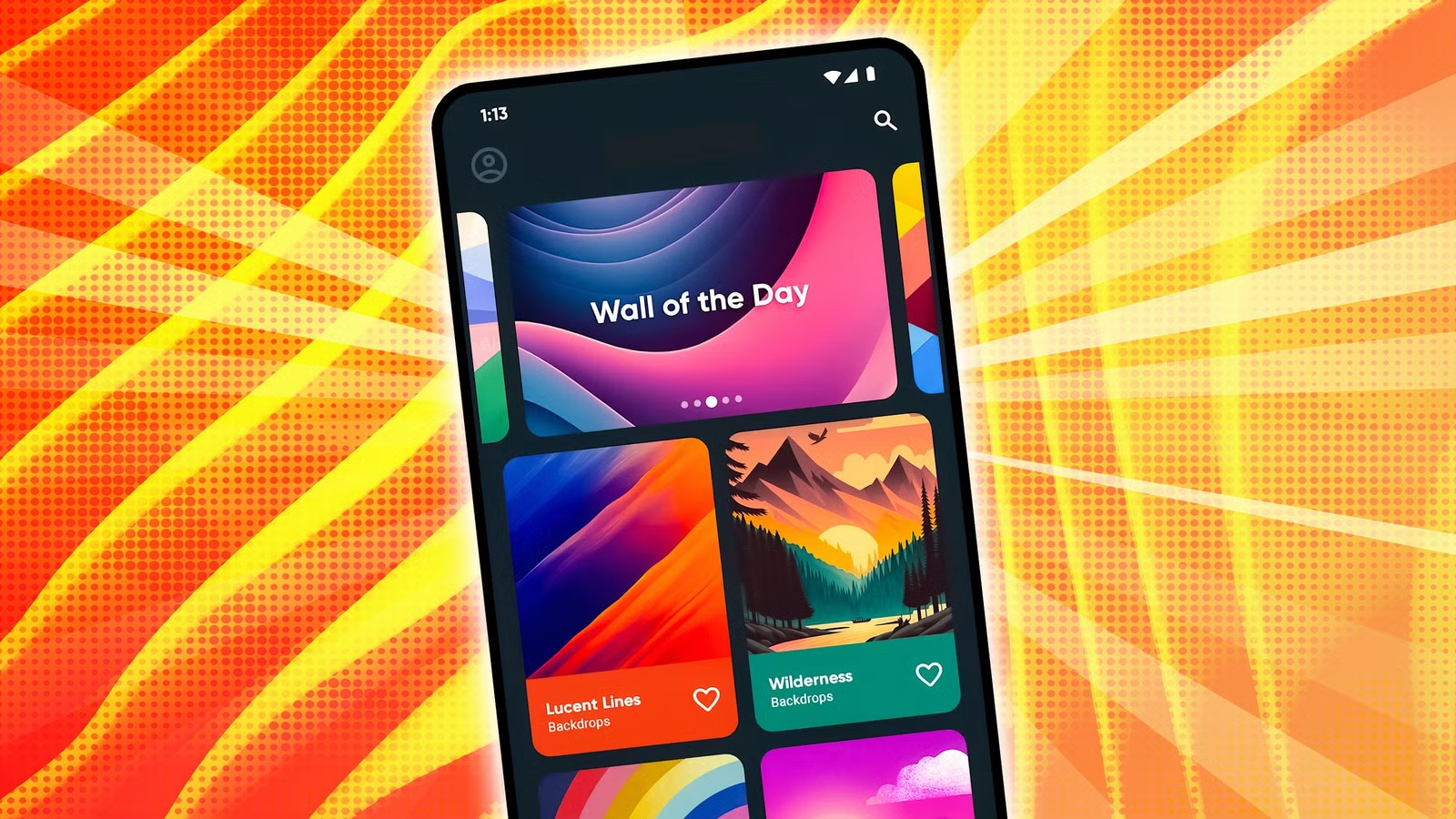
Backdrops — Curated collection, updated weekly. The “Community” tab has hidden gems. Free with premium option.
Walli — Artist-made wallpapers. Unique, not the same stock photos you see everywhere. Free with ads.
Reddit (r/Amoledbackgrounds, r/WidescreenWallpaper) — Community-driven, high quality. I find my best wallpapers here.
Unsplash — Photography-focused. Great for nature and city shots. Completely free.
My Wallpaper Rules
-
No faces or busy patterns. They compete with your icons.
-
Dark or muted tones work best. They make icons pop.
-
Match your wallpaper to your icon pack. If your icons are white, use a dark wallpaper for contrast.
-
Change it seasonally. I switch every 3 months to keep things fresh.
Step 6: Gestures and Shortcuts (The Pro Move)
This is what separates “customized” from “optimized.” Gestures let you access apps and functions without cluttering your screen.
Gestures I Use on Nova Launcher
-
Swipe up: Open app drawer
-
Swipe down: Open notifications
-
Double-tap: Lock screen
-
Two-finger swipe down: Open quick settings
-
Swipe up on Phone icon: Open Contacts
-
Swipe up on Chrome icon: Open Incognito tab
How to Set Up Gestures
-
Nova Settings > Gestures & Inputs.
-
Select a gesture type.
-
Choose the action or app to launch.
Why this matters: Every gesture saves you a tap. Over a day, that adds up to minutes saved. Over a year, it’s hours.
Step 7: Organize Your App Drawer
A beautiful home screen means nothing if your app drawer is chaos. Here’s how I organize mine:
Folder Strategy in App Drawer
I use Smart Launcher’s auto-categories, but if your launcher doesn’t have that:
-
Communication: Phone, Messages, WhatsApp, Telegram, Email
-
Work: Slack, Notion, Calendar, Drive
-
Finance: Banking, PayPal, Investment apps
-
Social: Instagram, Twitter/X, TikTok, Reddit
-
Tools: Calculator, File Manager, Settings
-
Media: Spotify, YouTube, Netflix, Camera
Hide Unused Apps
Go to your app drawer settings and hide apps you never use (bloatware, pre-installed games, carrier apps). I hide about 30 apps. My drawer went from 4 pages to 1.5.
Common Mistakes I Made (So You Don’t Have To)
Mistake 1: Over-customizing on day one. I changed everything — launcher, icons, widgets, wallpaper — in one sitting. It was overwhelming, and I hated it by day three. Start with one change. Live with it for a week. Then iterate.
Mistake 2: Ignoring performance. Some live wallpapers and heavy widgets drain battery. I used a live wallpaper for two days and lost 20% more battery. Test for battery impact before committing.
Mistake 3: Copying screenshots exactly. I tried to recreate a home screen I saw on Reddit. It looked great on a 6.7-inch phone but terrible on my 6.1-inch screen. Customize for your device and hand size.
Mistake 4: Not backing up. I spent four hours perfecting my layout, then my launcher crashed. I lost everything. Now I export my backup weekly.
Mistake 5: Forgetting about one-handed use. I put my most-tapped apps in the bottom-right corner (I’m right-handed). The top-left is for info widgets I read, not tap.
Pro Tips From Three Years of Tweaking
Tip 1: Use “At a Glance” widget if you have a Pixel. It’s Google’s best widget — weather, calendar, traffic, and reminders in one clean package.
Tip 2: Set different wallpapers for home screen and lock screen. I use a calm nature shot for home (where I work) and a motivational quote for lock screen (where I see it when I pick up my phone).
Tip 3: Use icon labels selectively. I turned off labels for apps I recognize by icon (Phone, Camera, Chrome) but kept them for lesser-used apps. It cleans up the look without hurting usability.
Tip 4: Schedule wallpaper changes. Some launchers let you auto-change wallpapers daily. I do this with Backdrops — wakes up to a fresh look every morning.
Tip 5: Join communities. r/AndroidThemes and r/NovaLauncher are goldmines. Sort by “Top” of all time for inspiration.
Frequently Asked Questions (Real Questions From Real Users)
Q1: Will using a third-party launcher slow down my phone?
A: Not if you choose a well-optimized launcher like Nova or Niagara. In fact, some stock launchers (especially from budget phone manufacturers) are heavier than Nova. I’ve run Nova on a 5-year-old phone with zero lag. Avoid launchers with excessive animations if you have an older device.
Q2: Can I go back to my original home screen if I don’t like the custom one?
A: Absolutely. Go to Settings > Apps > Default Apps > Home App and select your stock launcher. Uninstall the third-party launcher if you want. Your original layout is usually preserved. I switch back to Samsung One UI occasionally when I want something simpler — takes 10 seconds.
Q3: Do I need to pay for icon packs and launchers?
A: No, but the paid options are worth it. Nova Launcher Prime is $5.99 one-time (not a subscription). Most icon packs are $0.99–$2.99. I’ve spent maybe $15 total over three years, and the daily enjoyment I get is worth 100x that. There are excellent free options too — start there.
Q4: Will customizing my home screen drain my battery faster?
A: Only if you use live wallpapers, excessive widgets, or poorly coded launchers. Static wallpapers, minimal widgets, and established launchers like Nova have negligible battery impact. I actually gained battery life by removing Samsung’s bloatware widgets and using a cleaner setup.
Q5: Can I make my Android home screen look like an iPhone?
A: Technically yes, but why would you? Android’s strength is flexibility. If you want an iPhone look, use iOS icon packs and grid layouts. But I’d encourage you to explore what Android does better — widgets, gestures, and deep customization. My setup looks nothing like an iPhone, and I prefer it that way.
The Wrap-Up: Your Phone, Your Rules
Three years ago, I looked at my phone and felt nothing. Today, I unlock it and smile. Not because it’s “aesthetic” for Instagram, but because it’s mine. Every icon is where my thumb expects it. Every widget shows information I actually need. Every color matches my mood.
That’s the real power of Android customization. It’s not about impressing anyone. It’s about building a tool that fits your life perfectly.
Start small. Pick a launcher. Try one icon pack. Add one useful widget. Live with it, tweak it, make it yours. The perfect home screen isn’t the one you copy from a screenshot — it’s the one that disappears into your daily routine so smoothly, you forget you ever customized it at all.
Now put down this article and open your phone. Your blank canvas is waiting.