
A cluttered Android home screen can make simple tasks take longer than they should. When every app is placed wherever there happens to be space, you may spend several seconds swiping through pages just to find the one you need. The problem gets worse when you have hundreds of installed apps, multiple widgets, and folders with unclear names.
The good news is that you do not need a special launcher or complicated customization setup to fix it. Android already provides tools for moving apps, creating folders, removing unnecessary shortcuts, and arranging your home screens. Google documents these basic organization features for Android, although exact options can vary by version and device.
A better setup is not about making your phone look perfect. It is about putting the apps you use most where you can reach them quickly while keeping everything else out of the way.
Start by Deciding Which Apps You Actually Need on the Home Screen
Before moving dozens of icons around, take a minute to decide which apps deserve a place on your main screen.
Your home screen should contain the apps and shortcuts you use frequently. That might include your phone, messages, camera, maps, calendar, browser, notes, banking app, or a work-related application.
Apps you open only occasionally do not necessarily need their own icons on the home screen. They can remain in the app list or app drawer.
This distinction makes a big difference. You are not trying to organize every installed app on one screen. You are creating a quick-access area for the things you use most.
A simple test is to ask yourself:
“Would I be annoyed if I had to search for this app every time I opened my phone?”
If the answer is yes, keep it easily accessible. If you rarely open it, move it away from the main screen.
Remove App Icons Without Uninstalling the Apps
One common mistake is assuming that removing an icon from the home screen means deleting the application.
On standard Android interfaces, you can usually touch and hold an app icon and choose Remove. This removes the shortcut from the home screen while leaving the app installed. Google specifically distinguishes Remove from Uninstall: Remove takes the item off the home screen, while Uninstall removes the app from the device.
This is useful when your phone has become crowded but you still want to keep certain apps.
For example, you might use a flight-booking app once every few months. There is little reason to keep its icon permanently occupying valuable home-screen space.
If your phone shows both Remove and Uninstall, pay attention to which one you select.

Create Folders for Apps You Use Together
Folders are one of the easiest ways to reduce home-screen clutter.
Android allows you to create a folder by dragging one app on top of another. You can then add additional apps to the group and give the folder a useful name.
Think about how you actually use your phone rather than organizing apps only by their developer.
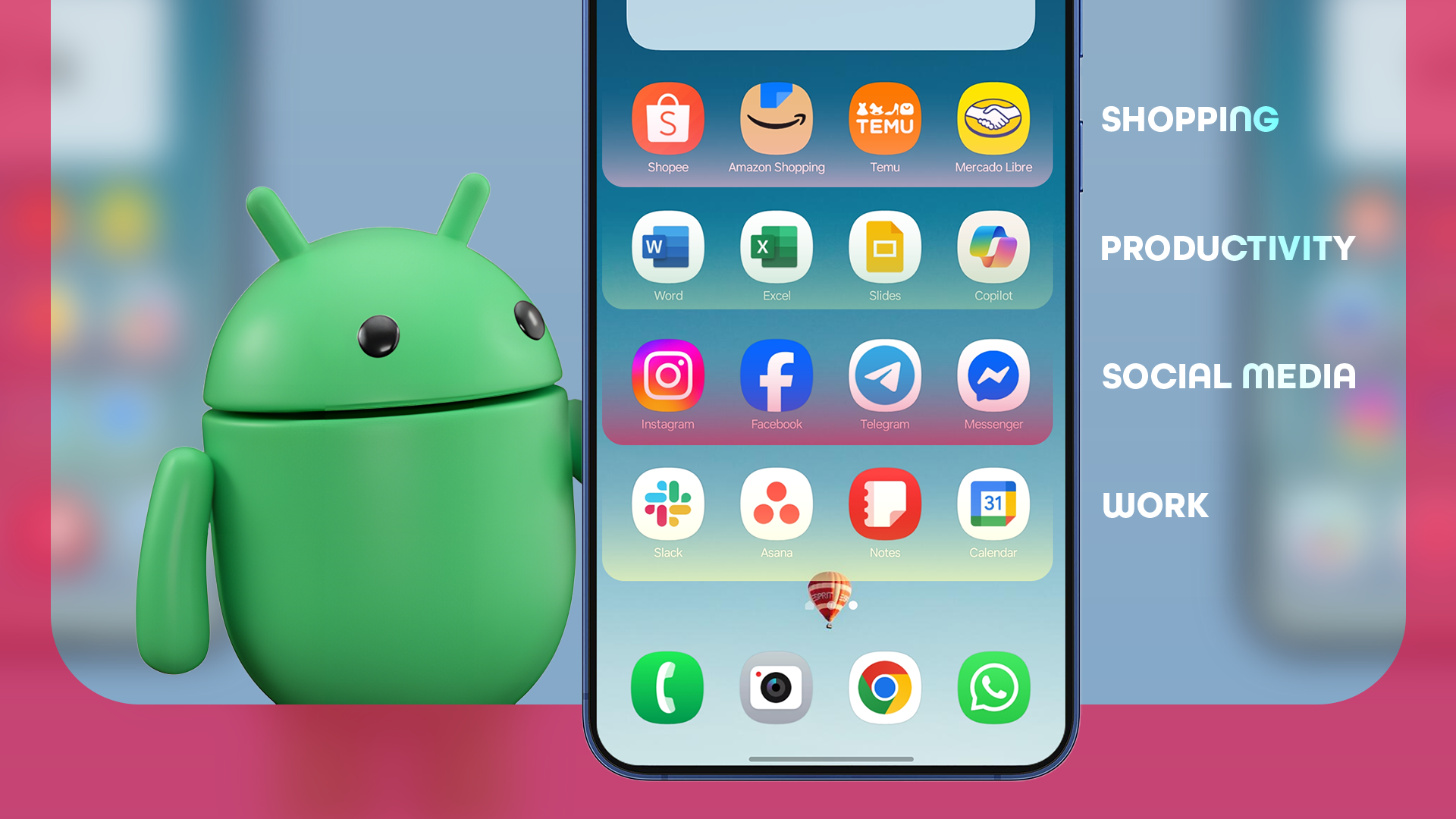
For example, you could create folders such as:
- Work for email, documents, meetings, and work communication
- Money for banking and payment apps
- Travel for maps, airline, hotel, and transport apps
- Social for messaging and social networking
- Shopping for stores and shopping services
- Media for music, video, podcasts, and streaming
- Tools for calculators, file managers, scanners, and utilities
The folder names should make sense at a glance. A folder called “Stuff” does not tell you much. “Money” or “Travel” immediately tells you what you will find inside.
How to Create an Android App Folder
The exact appearance varies between devices, but the general process is simple.
- Touch and hold an app icon on the home screen.
- Drag it directly on top of another app.
- Release the icon when the folder appears.
- Open the new folder.
- Give it a clear name if your phone asks you to do so.
- Drag other related apps into the folder.
If dragging one app onto another does not create a folder, check your phone’s launcher instructions. Some manufacturer launchers use slightly different controls.
Samsung Galaxy devices, for example, support creating folders by dragging one app shortcut onto another and then entering a folder name. Samsung notes that available options can vary by model and software version.
Keep Your Most-Used Apps in Easy-to-Reach Positions
Not every position on the screen is equally convenient.
If you normally use your phone with one hand, apps placed closer to the lower part of the display may be easier to reach than icons at the top.
Put your most frequently used applications in positions that feel natural for your hand.
For example, you might keep your browser, messages, camera, and phone app close to the bottom of the main screen. Less frequently used folders can go farther away.
Many Android phones also provide a bottom row or favorites area for frequently used apps. Samsung calls this the Favorite apps bar on Galaxy devices and allows users to replace the shortcuts there.
Do not feel obligated to copy someone else’s layout. The best position depends on the size of your phone, how you hold it, and which apps you open most often.
Use the App Drawer Instead of Filling Every Home Screen
Your home screen does not need to contain every application.
On many Android phones, swiping up from the home screen opens the app drawer or Apps screen. Google documents this gesture for accessing installed apps on supported Android devices.
This gives you two useful layers:
Home screen: Apps you use frequently.
App drawer: The larger collection of installed applications.
That arrangement keeps the home screen clean without forcing you to uninstall apps you still need.
Samsung Galaxy phones also use an Apps screen where installed applications can be accessed separately from the home screen.
If your phone uses a different gesture, look for an Apps, All apps, or similar option in the launcher.
Keep Folders Small Enough to Be Useful
Folders can solve clutter, but too many folders can create a new problem.
Imagine opening a folder called “Apps” and finding 35 icons inside. You have reduced the number of icons on the home screen, but you have not necessarily made anything faster to find.
Try to keep each folder focused on one type of activity.
If a folder becomes difficult to scan, divide it into clearer groups.
For example, instead of putting banking, shopping, food delivery, and payment apps into one folder called “Services,” you might use Money and Shopping.
The goal is to reduce the number of decisions you make when looking for something.
Put Only Useful Widgets on the Home Screen
Widgets can be useful, but they can also consume a surprising amount of space.
Android supports widgets that can show information without requiring you to open the associated app. Google also allows compatible widgets to be resized by touching and holding them and adjusting their edges.
A good widget earns its space.
For example, a calendar widget can make sense if you regularly check your schedule. A weather widget can be useful if weather affects your daily plans.
On the other hand, if you never look at a particular widget, removing it may make the screen easier to use.
Touch and hold a widget and look for Remove or the equivalent option on your device.
Create Separate Home Screens for Different Purposes
You do not have to put everything on one page.
If your Android launcher supports multiple home screens, you can create a simple structure.
For example:
Main screen: Most-used apps and one or two useful widgets.
Second screen: Work or productivity apps.
Third screen: Travel, shopping, entertainment, or less frequently used folders.
Google’s Android Help explains that users can add and remove home screens by moving apps, shortcuts, widgets, and groups between screens.
However, avoid creating a separate page for every category. If you have six pages and constantly swipe between them, the organization may be making access slower rather than faster.
Two or three purposeful screens are often easier to navigate than a large collection of nearly identical pages.
Consider App Shortcuts for Faster Access
Some Android apps provide shortcuts to specific actions.
Instead of opening an app and then navigating through its menus, you may be able to touch and hold the app icon and select a shortcut.
Google’s Android documentation notes that compatible apps can provide shortcuts that can be placed directly on the home screen.
For example, an app might provide a shortcut for composing a message, creating a new note, opening a particular section, or starting another common action.
This can be more useful than simply placing another copy of the app icon on the screen.
Availability depends on the application and launcher, so do not expect every app to offer shortcuts.

Arrange Your Home Screen Around Real Habits
The best layout is based on how you use your phone, not how a screenshot looks online.
Suppose you check your calendar every morning, send messages throughout the day, and frequently use your camera. Those apps deserve quick access.
If you open a particular shopping app once a month, it does not need the same priority.
Spend a few days noticing which apps you repeatedly search for. Those are the applications that should move closer to the main screen.
You can then remove icons that you rarely use.
This approach prevents you from creating a complicated system that looks organized but does not actually save time.
Keep the Home Screen Visually Simple
A cleaner home screen does not require a particular wallpaper or icon pack.
Start with fewer objects.
Remove duplicate shortcuts. Reduce unnecessary widgets. Keep folders clearly named. Leave some empty space when possible.
Empty space is not wasted space if it makes the screen easier to scan.
You should be able to look at your home screen and quickly identify where your important apps are located.
If you need to search through several folders to find a commonly used app, the layout probably needs another adjustment.
Samsung Galaxy Users Have Additional Home Screen Options
Samsung’s One UI has some features that differ from the basic Android experience.
On recent Galaxy devices, Samsung provides options for rearranging apps and widgets, changing the home-screen layout, and managing the Apps screen. Samsung’s current documentation also notes that options can vary according to the device, software version, and service provider.
One UI 7 also introduced an option to enlarge certain app folders from a standard folder size to a larger layout, allowing compatible folders to show apps more directly on the home screen.
This can be useful for a folder containing several frequently used apps, but it is not necessary for everyone.
If you use a Galaxy phone, check the options available on your particular model rather than assuming every Samsung device has exactly the same controls.

What to Do If It Doesn’t Work
You Cannot Move an App
What you may notice: You touch and hold an app, but it does not move where you want.
Possible reason: Your launcher may have a locked home-screen layout.
What to try: Touch and hold an empty area of the home screen and look for a home-screen settings option. If you see something related to locking the layout, disable it temporarily and try moving the app again.
Samsung devices, for example, may provide a setting that prevents home-screen items from being rearranged. The exact location can vary by software version.
The App Is Missing From the Home Screen
What you may notice: You removed an icon and cannot find it on the home screen.
Possible reason: You may have removed the shortcut rather than the application.
What to try: Open your app drawer or Apps screen and search for the application. If it is installed, you can usually add its shortcut back to the home screen.
Your Phone Does Not Have the Same Menu Names
What you may notice: An online guide says to select a setting that you cannot find.
Possible reason: Android manufacturers change the launcher design and menu structure.
What to try: Search your phone’s Settings or home-screen settings for terms such as Home screen, Apps, Launcher, or Home screen settings. You can also consult the manufacturer’s support documentation for your model.
A Folder Is Not Appearing
What you may notice: Dragging apps together does not create a folder.
Possible reason: Your launcher may use different controls.
What to try: Try touching and holding the app and look for an option related to adding it to a folder, or check your manufacturer’s launcher instructions.
Common Mistakes When Organizing Android Apps
Putting Every App on the First Page
This defeats the purpose of having an app drawer. Keep your first screen focused on the applications you actually use regularly.
Creating Too Many Folders
Ten or fifteen folders may look organized but can make navigation harder. Use broad, meaningful categories instead.
Giving Folders Vague Names
Names such as “Other,” “Stuff,” and “Apps” force you to open the folder just to discover what is inside. Use names that describe the purpose of the group.
Keeping Unused Widgets
A widget that you never check is taking up valuable space. Remove it and see whether the screen becomes easier to use.
Organizing Only for Appearance
A perfectly symmetrical screen is not necessarily efficient. Put apps where your fingers naturally reach them and where you can identify them quickly.
When This Organization Method May Not Be Enough
The standard Android launcher is enough for most people, but some users want more advanced customization.
For example, a person with hundreds of apps may want more specialized sorting or a different launcher. However, installing a third-party launcher introduces another layer of software and settings, so it is worth trying Android’s built-in organization features first.
You also should not install an app simply because it claims to “optimize” or “speed up” your home screen. A cleaner layout does not require a questionable cleaner or booster application.
If your phone remains slow after reorganizing the home screen, the problem is probably not the number of icons you have displayed. Home-screen organization improves navigation and usability; it should not be treated as a guaranteed performance fix.
Frequently Asked Questions
How many apps should I keep on my Android home screen?
There is no universal number. Keep the apps you use frequently and move less-used applications into folders or the app drawer. If you have to search through the screen to find something, reduce the number of icons.
Does removing an app icon uninstall the app?
Usually, no. On standard Android interfaces, Remove takes the shortcut off the home screen, while Uninstall removes the application from the phone.
Can I create folders for Android apps?
Yes. On many Android devices, you can drag one app icon onto another to create a folder and then add related apps to it. The exact controls may differ between manufacturers.
Should I put every app inside folders?
No. Frequently used apps are often faster to access when they have their own shortcuts. Use folders for groups of related apps that you do not need individually on the main screen.
Why do Android home-screen instructions differ between phones?
Android manufacturers can customize the launcher and home-screen experience. Android version, device model, and manufacturer software can all change the available options and menu names.
Can widgets make my home screen more useful?
Yes, when they provide information you regularly need. A calendar, weather, or similar widget can reduce the number of times you need to open an app. If a widget rarely helps you, removing it can free up space.
Will organizing apps make my Android phone faster?
It can make the phone feel easier and quicker to navigate because you spend less time searching for apps. However, reorganizing icons should not be expected to produce a major improvement in the phone’s processing performance.
Conclusion
A well-organized Android home screen should make your most common tasks easier, not create another system you have to manage.
Start by removing shortcuts you rarely use, keep frequently opened apps within easy reach, group related applications into clearly named folders, and use separate home-screen pages only when they serve a real purpose. Widgets and app shortcuts can provide another layer of convenience when they are genuinely useful.
Remember that Android interfaces differ between phones, so a setting shown on one device may have a different name or location on another. When something does not match the instructions, check your phone manufacturer’s documentation rather than assuming the feature is missing.
The best home screen is ultimately the one that lets you find what you need with as little searching as possible.