

Click the Microsoft Store icon and it flashes open, then closes. Or it sits on a blank white window, or shows an error code before you can download a single app. When the Microsoft Store won’t open on Windows 11, the usual causes are a corrupted cache, wrong date and time settings, or a damaged app installation. All of them can be fixed with built-in tools.

Fix 1: Check your date, time and region
The Store connects to Microsoft’s servers using secure certificates. If your PC’s clock is off, those connections fail and the Store may not load.
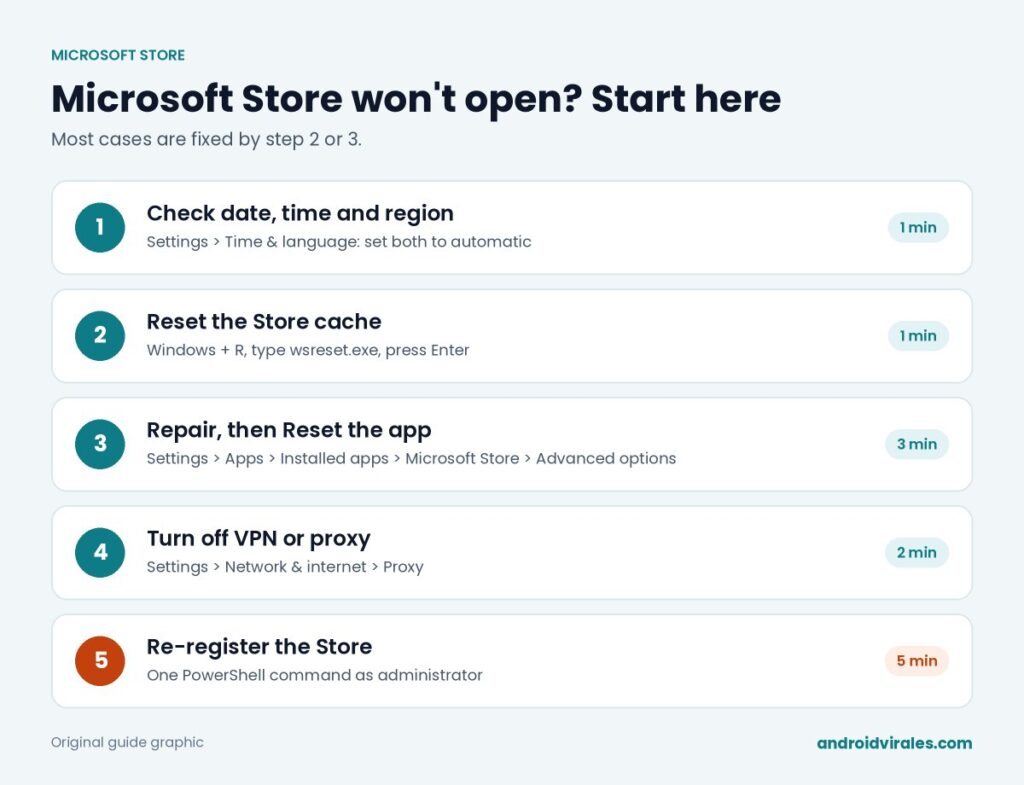
- Go to Settings > Time & language > Date & time.
- Turn on Set time automatically and Set time zone automatically, then click Sync now.
- Under Language & region, make sure Country or region is correct.
Fix 2: Reset the Store cache with wsreset
This is the quickest fix and works more often than you’d expect.
- Press Windows + R.
- Type
wsreset.exeand press Enter.
A blank black window appears for a few seconds. Don’t close it. When it finishes, the Store opens on its own with a fresh cache.
Fix 3: Repair, then reset the Store app
- Go to Settings > Apps > Installed apps.
- Find Microsoft Store, click the three dots and choose Advanced options.
- Click Repair first. This keeps your settings.
- If that doesn’t help, click Reset. This clears the app’s data, so you may need to sign in again.
Fix 4: Run the Windows Store Apps troubleshooter
Open Settings > System > Troubleshoot > Other troubleshooters, find Windows Store Apps and click Run. On newer builds it may open the Get Help app, which runs the same checks.
Fix 5: Turn off VPN, proxy and third-party firewalls
A VPN, a proxy setting or an aggressive security suite can block the Store’s connection. Disconnect your VPN, then check Settings > Network & internet > Proxy and make sure no manual proxy is set unless you need one. If you use third-party antivirus, try pausing its firewall briefly to test. Our comparison of the best free antivirus for Windows explains why Microsoft Defender alone is enough for many people.
If other apps are also losing their connection, the problem may be your network itself. See how to fix Wi-Fi that keeps disconnecting.
Fix 6: Install Windows updates
The Store relies on parts of Windows that are updated through Windows Update. Go to Settings > Windows Update, install everything, and restart. If updates are stuck, follow our Windows Update stuck fix first.
Fix 7: Re-register the Microsoft Store
If the Store is badly damaged, you can make Windows register it again. This sounds technical, but it’s one command.
- Right-click the Start button and choose Terminal (Admin).
- Make sure the tab says PowerShell, then paste this command and press Enter:
Get-AppxPackage -AllUsers *WindowsStore* | Foreach {Add-AppxPackage -DisableDevelopmentMode -Register "$($_.InstallLocation)AppXManifest.xml"}
Red warning text may appear for packages that are in use. That’s normal. Restart the PC and open the Store again.
Still not working?
Create a new user account under Settings > Accounts > Other users and try the Store there. If it opens, the issue is limited to your profile. As a last resort, Settings > System > Recovery > Reset this PC with Keep my files reinstalls Windows and the Store while keeping your documents.
Quick answers
Do I need a Microsoft account to use the Store?
You can browse and download many free apps without one, but some apps and all purchases require signing in.
Will resetting the Store remove my installed apps?
No. Reset only clears the Store’s own data. Apps you’ve installed stay on your PC.
Can I download apps without the Store?
Many programs offer installers on their official websites. Download only from the developer’s own site, never from unofficial mirrors.