
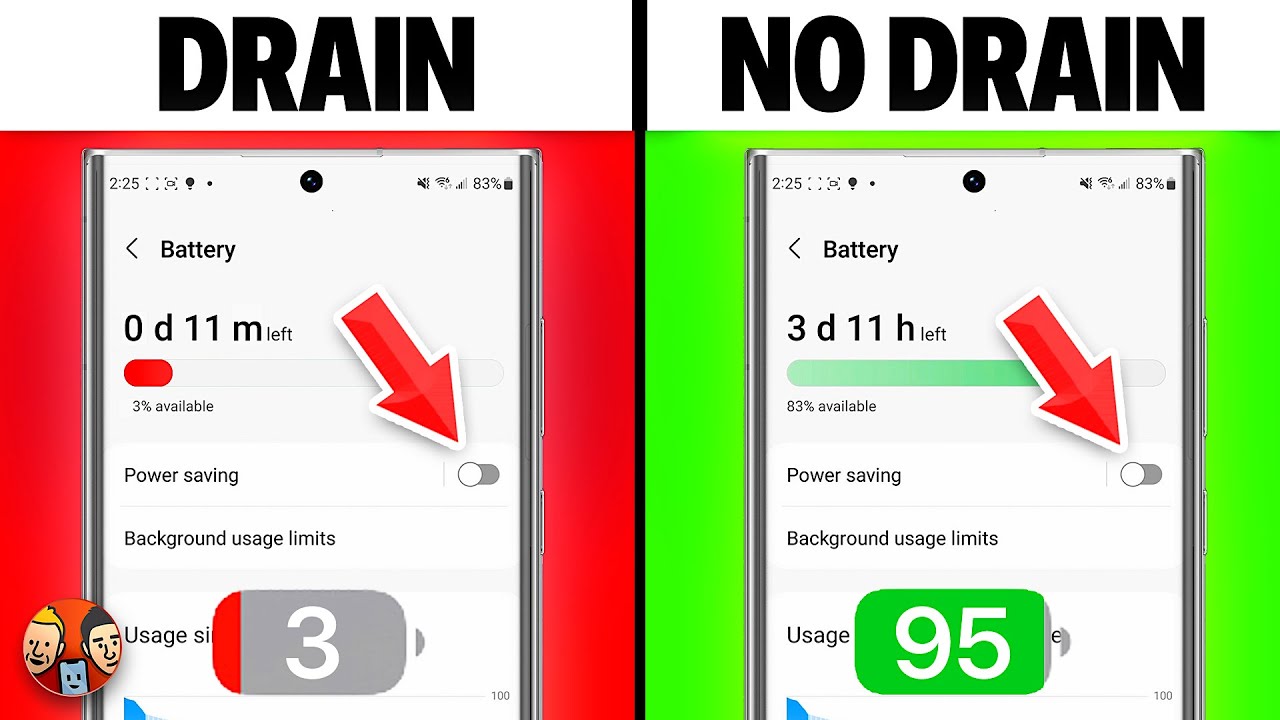
Waking Up to a Nearly Empty Battery Isn’t Normal
You charge your Android phone before bed, unplug it, and expect it to have plenty of battery left the next morning. Instead, you wake up to find that the battery has dropped by 15%, 20%, or even more overnight. If this happens occasionally, it may not be a cause for concern. But if it becomes a regular pattern, something is preventing your phone from entering its normal low-power state.
Overnight battery drain can be caused by several factors, including apps running in the background, poor network connections, outdated software, battery settings, or even hardware issues. The good news is that you can often solve the problem without installing battery-saving apps or replacing your phone.
The best approach is to identify what is consuming power while the phone is idle and make targeted adjustments rather than changing every setting at once.
Check Your Battery Usage First
Before making changes, find out which apps are using the most battery.
Open Settings and navigate to Battery or Battery Usage, depending on your Android version and phone manufacturer. Review the list of apps that have consumed battery power over the past day.
If you notice an app using an unusually large amount of battery despite not using it before bed, you’ve likely found an important clue.
Messaging apps, navigation apps, social media platforms, and cloud storage services can sometimes continue working in the background longer than expected.
Understanding which app is responsible helps you choose the right solution instead of relying on guesswork.
Restart Your Phone Before Assuming the Worst
Temporary software glitches can prevent Android from managing background processes efficiently.
If your phone hasn’t been restarted in several days or weeks, perform a simple restart and monitor battery performance overnight.
Many users are surprised to discover that a restart clears background processes that had become stuck, allowing the phone to enter normal sleep mode again.
It’s one of the easiest troubleshooting steps and often resolves minor battery issues.
Install Android and App Updates
Software updates frequently include battery optimizations alongside security improvements.
If your phone is running an older version of Android or if several apps are waiting to be updated, install those updates before investigating more complex solutions.
Developers regularly fix background activity bugs that can cause excessive battery usage.
Likewise, keeping Android updated ensures your phone benefits from the latest power management improvements provided by the manufacturer.
Turn Off Features You Don’t Need Overnight
Your phone doesn’t need every wireless feature active while you’re sleeping.
If you don’t expect calls from unknown numbers or aren’t using Bluetooth devices overnight, consider turning off Bluetooth when you go to bed.
Similarly, if you rarely use location-based services during the night, allowing only essential apps to access your location can reduce unnecessary background activity.
You don’t have to disable everything permanently. Simply limiting unused features during idle hours can make a noticeable difference.
Review Battery Optimization Settings
Android includes built-in battery optimization designed to reduce unnecessary background activity.
Most apps should remain optimized.
However, if you’ve previously disabled battery optimization for multiple apps, those apps may continue running more aggressively while your phone sits unused.
Review your battery optimization settings and restore optimization for apps that don’t require constant background activity.
Be careful not to restrict essential messaging or emergency communication apps that need timely notifications.
Finding the right balance helps preserve battery life without affecting important functions.
Improve Your Wi-Fi or Mobile Signal
Poor network reception is one of the most overlooked causes of overnight battery drain.
When your phone struggles to maintain a connection, it repeatedly increases power usage while searching for a stronger signal.
If your bedroom has weak cellular coverage, your phone may consume more battery overnight than it does during the day.
Connecting to a stable Wi-Fi network can often reduce this problem.
Likewise, if you’re in an area with no reliable signal at all, enabling Airplane Mode overnight—provided you don’t need calls or messages—can dramatically reduce battery usage.
Check for Apps Running in the Background
Some apps continue syncing data long after you’ve stopped using them.
Cloud backup services, email apps, social media platforms, and fitness trackers may all perform background tasks throughout the night.
Review which apps have permission to run unrestricted in the background.
If certain apps don’t require immediate updates while you’re asleep, allowing Android to manage their background activity more aggressively can save power.
Avoid installing third-party task killer apps, as modern Android already manages background processes efficiently.
Enable Battery Saver When Appropriate
Battery Saver isn’t only useful when your battery becomes critically low.
If you’re experiencing unusually high overnight battery drain, enabling Battery Saver before bed can reduce background activity, limit visual effects, and decrease unnecessary processing.
Most users won’t notice any difference while sleeping, but the reduced activity may help preserve more battery by morning.
If Battery Saver consistently solves the problem, it may indicate that a specific app is consuming excessive power under normal conditions.
Reduce Always-On Display Usage
Many Android phones include an Always-On Display that shows the time, notifications, or other information even when the screen appears off.
Although this feature is designed to use minimal power, it still consumes battery throughout the night.
If preserving battery is your priority, consider scheduling Always-On Display to turn off during sleeping hours or disabling it altogether.
Many manufacturers allow automatic scheduling, providing a good balance between convenience and efficiency.
Check Sync Settings
Automatic synchronization keeps your information updated across devices, but it also consumes power.
Review which accounts are syncing overnight.
If you have multiple email accounts, cloud storage services, calendars, or social media accounts syncing continuously, your phone may remain active more often than necessary.
There’s usually no need to disable synchronization completely.
Instead, consider whether every account truly needs immediate updates around the clock.
Reducing unnecessary syncing can extend battery life without affecting everyday usability.
Watch for Overheating
A phone that remains warm overnight may be working harder than it should.
Excessive background processing, poor charging accessories, or software issues can all contribute to heat generation.
If your phone frequently feels unusually warm after sitting idle overnight, investigate which apps are running and whether any software updates are available.
Avoid placing your phone under pillows or blankets while charging, as trapped heat can reduce battery efficiency and affect long-term battery health.
Keeping the device in a cool, well-ventilated location helps maintain normal operating temperatures.
Use Quality Charging Accessories
Not every charging cable and power adapter delivers consistent performance.
Poor-quality or damaged charging accessories may not charge the battery efficiently, making it seem like excessive battery drain occurred overnight.
Whenever possible, use the charger supplied with your phone or a high-quality replacement from a reputable manufacturer that meets your device’s charging specifications.
Also inspect charging cables for visible damage that could affect charging reliability.
Know When Battery Health Is the Problem
If your phone is several years old, the battery itself may have naturally degraded.
Rechargeable lithium-ion batteries gradually lose capacity after hundreds of charging cycles.
Signs of battery wear include rapid percentage drops, unexpected shutdowns, overheating, and significantly shorter battery life despite careful settings management.
If you’ve ruled out software issues and overnight drain continues to worsen, replacing the battery—if your device supports it—or consulting an authorized repair provider may be worthwhile.
A worn battery cannot always be restored through software adjustments.
Avoid Common Battery-Saving Myths
Many battery tips shared online are outdated or unnecessary.
Closing every app before bed rarely improves battery life because Android already manages inactive apps efficiently.
Similarly, installing battery booster or RAM cleaner apps often creates additional background activity instead of reducing it.
Turning off every feature permanently also isn’t necessary.
The goal is to identify what’s actually consuming power rather than sacrificing convenience for minimal savings.
Modern Android devices are designed to balance performance and battery life automatically when configured correctly.
Build Better Charging and Usage Habits
Preventing overnight battery drain isn’t about finding one magical setting.
It’s about maintaining healthy device habits.
Install updates regularly, review battery usage occasionally, remove apps you no longer use, keep wireless connections optimized, and restart your phone from time to time.
These small habits help Android manage resources more efficiently and reduce unexpected battery consumption.
Over time, consistent maintenance often produces better results than repeatedly searching for quick fixes.
Final Thoughts
If your Android phone consistently loses a significant amount of battery overnight, there’s usually an identifiable reason behind it. Background apps, poor network reception, battery optimization settings, excessive syncing, outdated software, or an aging battery are among the most common causes.
By checking battery usage, installing updates, optimizing background activity, improving network conditions, and reviewing your phone’s built-in battery settings, you can often reduce overnight battery drain without installing extra apps or making complicated changes. Most importantly, monitor the results after each adjustment. A methodical approach makes it much easier to discover what was keeping your phone awake while you were supposed to be sleeping.