
Missing Notifications Can Cause More Problems Than You Realize
Android notifications keep you connected to the things that matter most. Whether it’s an important email, a banking alert, a calendar reminder, a delivery update, or a message from family, delayed or missing notifications can quickly become frustrating.
If your Android phone has suddenly stopped showing notifications, don’t assume the app is broken. In many cases, the issue is caused by a simple setting, an aggressive battery optimization feature, or a software glitch.
The good news is that notification problems are usually fixable. By working through the following solutions one at a time, you can identify the cause and restore reliable alerts without performing a factory reset.
Make Sure Notifications Are Enabled
The first thing to check is whether notifications have been disabled for the affected app.
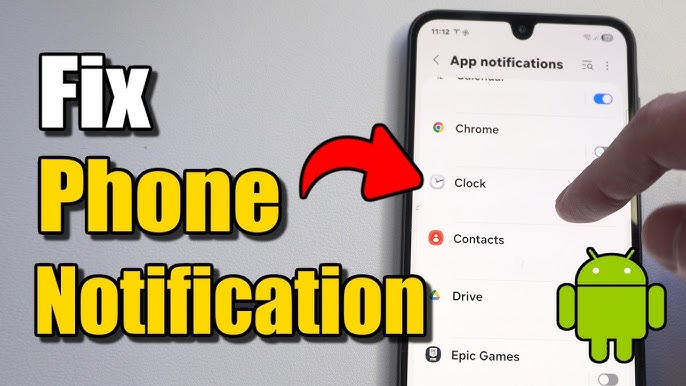
Open Settings, then go to Apps, select the app that isn’t sending notifications, and open Notifications.
Confirm that notifications are turned on. Also review individual notification categories, as Android allows apps to separate alerts into different types, such as messages, promotions, reminders, or system updates.
It’s surprisingly common for one notification category to be disabled while others remain active.
Restart Your Phone
A simple restart can resolve temporary software issues that interfere with notifications.
Background services occasionally stop working correctly after long periods without a reboot, especially following app or system updates.
Restarting refreshes Android’s notification services and often restores normal behavior within a few minutes.
If you rarely restart your phone, making it an occasional habit can improve overall system stability.
Check Do Not Disturb Mode
One of the most common causes of missing notifications is Do Not Disturb mode.
When enabled, it can silence sounds, vibrations, pop-up alerts, or all notifications depending on how it’s configured.
Open Settings and look for Do Not Disturb or Modes, depending on your Android version and manufacturer.
Also check whether a schedule automatically activates the feature during certain hours.
Many users accidentally leave Do Not Disturb enabled without realizing it.
Disable Battery Optimization for Important Apps
Battery optimization helps extend battery life, but it can also delay notifications from certain apps.
Messaging apps, email clients, and collaboration tools may be affected if Android limits their background activity.
Go to Settings, open Battery, then Battery Optimization or Background Usage Limits, and review the settings for the affected app.
If it’s an app that requires immediate notifications, allowing unrestricted battery usage may improve reliability.
Avoid changing this setting for every app, as doing so can reduce battery life unnecessarily.
Verify Background Activity Is Allowed
Some manufacturers add additional battery-saving features beyond standard Android settings.
If background activity has been restricted, apps may stop checking for new messages until you open them manually.
Open the affected app’s information page in Settings and ensure background activity is allowed.
This is especially important for messaging, email, calendar, and productivity apps that rely on continuous synchronization.
Check Internet Connectivity
Many notifications depend on an active internet connection.
If your phone frequently switches between Wi-Fi and mobile data or has an unstable connection, notifications may arrive late or not at all.
Try opening a webpage or refreshing the affected app to confirm your connection is working properly.
If notifications appear only after opening the app, connectivity or background restrictions may be contributing to the problem.
Update Android and Your Apps
Software bugs occasionally interfere with notification delivery.
Check for available Android updates and install any pending system patches.
Then update your apps through the Google Play Store.
Developers regularly fix notification-related bugs, improve compatibility, and optimize background synchronization.
Keeping both Android and your apps current reduces the likelihood of software conflicts.
Check Notification Channels
Modern Android versions organize notifications into categories called notification channels.
For example, an email app might separate new email alerts, promotional messages, calendar reminders, and account notifications.
If only certain alerts are missing, open the app’s notification settings and review each category individually.
It’s possible that one specific channel has been disabled while others remain active.
This setting is often overlooked because the main notification switch still appears enabled.
Clear the App Cache
Corrupted temporary files can sometimes interfere with normal app behavior.
If notifications have stopped working for a single app, clearing its cache may help.
Open the app’s information page, choose Storage, then select Clear Cache.
Avoid choosing Clear Storage unless necessary, as doing so may remove downloaded data or require you to sign in again.
Clearing cache is a simple troubleshooting step that often resolves minor software issues.
Review Data Saver Settings
Android’s Data Saver feature reduces background data usage, but it can also delay notifications.
If Data Saver is enabled, some apps may wait until they’re opened before checking for updates.
Open Settings, then Network & Internet or Connections, and review your Data Saver settings.
If necessary, allow important communication apps unrestricted access while Data Saver remains active for everything else.
This provides a balance between conserving data and receiving timely notifications.
Sign Out and Sign Back Into the App
Occasionally, notification problems result from account synchronization issues rather than Android itself.
If only one app is affected, signing out and back into your account may refresh its connection.
This is particularly helpful for email apps, messaging services, and productivity platforms that rely on cloud synchronization.
Before signing out, make sure you know your login credentials to avoid unnecessary complications.
Reinstall the App
If every other solution fails for one specific application, reinstalling it is often worthwhile.
Uninstall the app, restart your phone, and download it again from the Google Play Store.
After reinstalling, grant the necessary notification permissions during setup and confirm that battery optimization isn’t restricting the app.
A clean installation removes corrupted files that updates sometimes leave behind.
Manufacturer-Specific Battery Management
Many Android manufacturers include additional battery-saving features that are more aggressive than standard Android.
Phones from brands such as Samsung, Xiaomi, OPPO, vivo, OnePlus, Huawei, and others may automatically place rarely used apps into sleep mode or restrict background activity.
If notifications continue failing despite normal Android settings, review your manufacturer’s battery management features.
Look for options such as sleeping apps, adaptive battery, background limits, or app optimization.
These settings often explain why notifications work on one Android phone but not another.
When Notifications Still Don’t Work
If none of the previous solutions resolves the issue, consider whether the problem affects every app or only one.
If all notifications have stopped, a broader system issue may exist. Restarting, installing pending updates, or resetting app preferences may help.
If only one app refuses to deliver notifications despite every setting being correct, the issue may be related to the app itself, its servers, or a temporary bug awaiting an update.
Testing the same account on another device can help determine whether the problem is with the app or your phone.
Preventing Notification Problems in the Future
Most notification issues can be avoided with a few simple habits.
Keep Android and your apps updated, avoid installing aggressive battery-saving utilities, review battery optimization settings after major software updates, and restart your phone occasionally.
Also be cautious when changing notification or battery settings manually. Small adjustments intended to improve battery life sometimes unintentionally prevent important apps from running properly.
Regular maintenance helps ensure important alerts continue arriving when you need them.
Final Thoughts
Missing Android notifications are usually caused by settings rather than hardware problems. Disabled notifications, Do Not Disturb mode, battery optimization, restricted background activity, outdated software, or unstable internet connections are among the most common reasons alerts stop appearing.
By working through these twelve proven solutions one step at a time, you can identify the underlying cause without resorting to drastic measures like a factory reset. Most importantly, make only one change at a time and test notifications afterward. This methodical approach makes it much easier to pinpoint what was preventing your Android phone from delivering the alerts you rely on every day.