Browser hijackers and persistent adware are invasive software variants designed to forcefully alter your core web navigation configurations, funneling your search traffic through revenue-generating ad networks. When infected, your default search engine suddenly changes without permission, aggressive pop-up advertisements overlay your desktop, and new browser tabs endlessly redirect to unfamiliar tracking domains. During our extensive malware removal testing across Windows 11 desktop environments and macOS Sonoma systems, we isolated this infection cycle to unauthorized browser extensions, deceptively bundled software installers, and deeply embedded registry or policy modifications. This frustrating security breach affects users across all major browsers, including Google Chrome, Microsoft Edge, and Apple Safari, regardless of the underlying operating system.
Quick Diagnostics Checks to Run First
Identify the specific browser behavior immediately before taking action. Open a brand new tab and observe exactly which URL loads first, as this domain name is often the clearest indicator of which specific adware family has compromised your system. Note if the redirect only happens in one specific browser or if it affects every browser installed on your machine.
Verify your localized notification permissions to ensure the pop-ups are actually adware and not just website abuse. Many users mistake standard browser push notifications from malicious websites for deeply rooted system infections. Check your browser privacy settings and review the list of websites permitted to send desktop notifications, completely clearing any unrecognized domains.
Test the browser in a private or incognito window. Because private browsing mode typically disables all third-party extensions by default, launching an incognito window helps determine if the hijacker is contained within a specific rogue extension or if it has embedded itself deeper into your operating system architecture.
Method 1: Purge Suspicious Extensions and Reset Browser Configurations
Browser hijackers overwhelmingly rely on malicious extensions to continuously inject unauthorized advertisements and rewrite your search queries in real-time. Removing these extensions and forcibly resetting the browser architecture to its factory state is the most critical primary fix.
For Google Chrome and Microsoft Edge on Windows or Mac, type the extensions URL directly into your address bar to access the hidden management dashboard. Type chrome://extensions or edge://extensions and press Enter. Scrutinize every single active extension block. You must click the Remove button on any extension you do not explicitly remember installing, paying special attention to generic names like Search Assistant, PDF Converter, or New Tab Customizer. Once the extensions are purged, navigate to your browser settings, access the Reset section, and select the option to restore settings to their original defaults. This action automatically repairs your home page, search engine bindings, and pinned tabs.
For Apple Safari users on macOS, the navigation path is strictly routed through the system menu bar. Click Safari in the top left corner of your screen and select Settings. Navigate to the Extensions tab and review the installed packages. Click the Uninstall button next to any unauthorized additions. Because Safari does not possess a singular reset button, you must manually navigate to the General tab to rewrite your Homepage field, and then open the Search tab to reselect a trusted default search engine like Google or DuckDuckGo.
Method 2: Uninstall Hidden System-Level Applications
If repairing the browser yields no results, the adware has successfully installed a companion executable directly onto your operating system. This background application will simply reinstall the malicious browser extension the next time you restart your computer, meaning you must destroy the root program.
On a Windows 11 machine, press the Windows Key and the letter R simultaneously to open the Run dialog box. Type appwiz.cpl and press Enter to launch the legacy Programs and Features control panel. Click the Installed On column header to sort the list chronologically by date. Meticulously review any software installed on the exact date your browser symptoms began. Right-click any unrecognized programs, sketchy download managers, or fake system optimizers, and select Uninstall. Follow the on-screen prompts to completely eradicate the files from your hard drive.
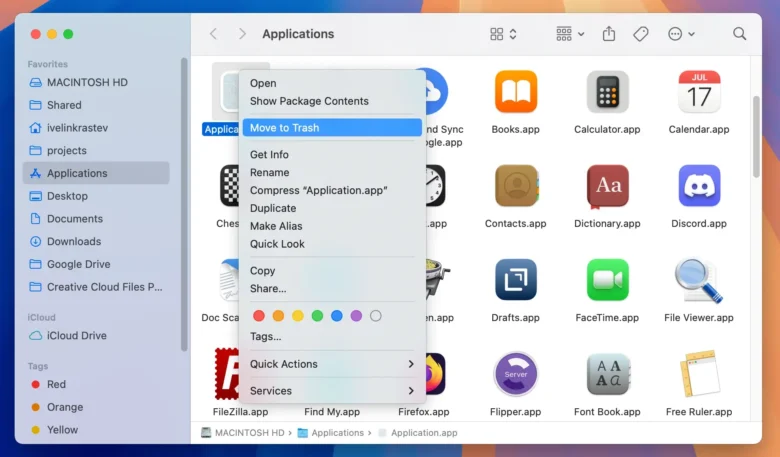
On a macOS system, open a new Finder window and select Applications from the left sidebar. Change the view mode to a detailed list and sort by the Date Added column. Search for unfamiliar software packages or fake antivirus scanners like MacKeeper that routinely bundle adware payloads. Right-click the suspicious application and select Move to Trash. You must then right-click the Trash icon on your dock and select Empty Trash to finalize the deletion.
Method 3: Erase Malicious Startup Daemons and Login Items
Persistent adware ensures its survival by attaching itself to your operating system’s boot sequence. By embedding a launch trigger into your startup configuration, the malware guarantees it will execute silently in the background every single time you power on your machine.
For Windows users, press the Control, Shift, and Escape keys simultaneously to instantly open the Task Manager. Navigate to the Startup apps tab on the left sidebar. Review the list of enabled background tasks. If you identify a generic script, an unnamed executable, or a command prompt trigger, right-click the entry and select Disable. Next, press the Windows Key and R, type taskschd.msc, and press Enter. Inside the Task Scheduler, delete any automated triggers linked to unfamiliar executable files hidden inside your AppData or Temp directories.
For Mac users, you must audit your user profile configuration. Open System Settings and navigate to the General menu. Click on Login Items to reveal the software permitted to launch automatically. Select any unrecognized applications listed under Open at Login and click the minus button to remove them. You must also review the Allow in the Background list directly below it, toggling off permissions for any unverified developers attempting to run silent background processes.
Advanced Fix: Clean Browser Policies and Device Management Profiles
When standard uninstallation methods completely fail and the browser settings remain locked, the hijacker has utilized enterprise-level deployment tools to seize control of your machine. Attackers manipulate Windows Registry policies and macOS Configuration Profiles to permanently lock the homepage and search engine, completely graying out the settings menus so you cannot change them back.
On a Windows machine, you must edit the core registry to strip the unauthorized administrative policies. Press the Windows Key and R, type regedit, and press Enter to launch the Registry Editor. Navigate through the folder tree to HKEY_LOCAL_MACHINE, Software, Policies, Google, Chrome. If you use Edge, navigate to the Microsoft, Edge folder instead. Delete any specific registry keys dictating a forced homepage or search provider. Once these keys are deleted, restart your computer and use a trusted anti-malware tool like Malwarebytes to run a full system scan, quarantining any remaining corrupted files.
On a Mac, adware exploits the configuration profiles typically used by corporate IT departments to lock down employee laptops. Open System Settings, select General, and click on VPN & Device Management. If you see an unexpected Configuration Profile installed here, it is actively forcing your browser to route traffic through the attacker’s servers. Select the unauthorized profile and click the minus button to permanently revoke its administrative control over your operating system. Restart your Mac to flush the compromised routing cache.
Quick Reference Adware Troubleshooting Matrix
| Issue Symptom Profile | Fastest Recommended Fix | Target Location |
| Search engine changes but no unknown apps are installed | Purge Suspicious Extensions | Browser Settings |
| Hijacker returns immediately after computer restart | Erase Malicious Startup Daemons | Task Manager / Login Items |
| New unfamiliar toolbars appear on the desktop | Uninstall Hidden System Apps | Apps & Features / Applications |
| Browser settings are entirely grayed out and locked | Clean Browser Policies and Profiles | Windows Registry / Mac Profiles |
| Extreme pop-ups regardless of the active application | Run Malwarebytes Full Scan | Entire Storage Drive |
Frequently Asked Questions
Why did my antivirus software fail to stop this browser hijacker from installing?
Browser hijackers frequently bypass traditional antivirus detection because they are intentionally bundled inside the installers of legitimate software. When you quickly click through an installation wizard for a free PDF converter or video player, you are technically giving your explicit, legal consent to install the bundled adware. Because you authorized the installation, your antivirus software assumes the program is safe and allows it to modify your system without triggering a security alert.
Will clearing my browser cache remove the adware infection permanently?
Clearing your cache and cookies is a helpful supplementary step that removes tracking tokens, but it will absolutely never cure a persistent adware infection on its own. Adware relies on executable code hidden within extensions, registry keys, or background applications. Until you manually locate and destroy the root executable files driving the behavior, the malware will simply regenerate its tracking cookies the next time you open your browser.
Is it safe to use system restore points to undo a hijacker infection?
Rolling back your Windows operating system to a previous restore point can effectively eliminate a recent hijacker infection by reverting the registry and program files to a clean state. However, this method is highly destructive to any legitimate software installations, system updates, or driver configurations you applied after the restore point was created. You should only rely on system restore as a final fallback if manual uninstallation and dedicated malware scanners completely fail to break the adware persistence loop.
Preventing future infections requires strict vigilance during software installations. Always select the custom or advanced installation option when downloading freeware, meticulously reading each prompt to uncheck any bundled toolbars or search assistants before they can infiltrate your operating system architecture. By understanding the deep hooks adware uses to survive reboots and evade basic uninstallation, you can systematically dismantle the infection and permanently secure your digital environment.