When Google Drive for Desktop stops syncing, the underlying cause typically falls into one of four categories: a corrupted local cache, an expired authentication token, an aggressive firewall blocking background data, or a depleted cloud storage quota. Fixing the issue requires isolating whether the desktop client has lost its handshake with Google’s servers, or if a localized file conflict is permanently freezing the upload queue.
Quick Diagnostics Checks to Run First
-
Verify Storage Limits: Open a web browser, navigate to your Google Drive, and check the storage indicator in the bottom left corner. If your account is completely full, the desktop client will silently fail to sync new files without always generating an error pop-up.
-
Check File Naming and Locks: Google Drive cannot sync files that are actively open and locked by another program (like a massive video rendering in Premiere or an active database file). It also rejects files with invalid operating system characters in the name (like
?,<,>, or|). -
Force Restart the Client: Simply closing the file explorer window does not stop the sync engine. You must click the Google Drive icon in your system tray (Windows) or menu bar (Mac), click the Settings gear icon, and select Quit. Relaunch the app from your Start Menu or Applications folder.
Method 1: Pause and Resume the Sync Queue
Sometimes, the sync engine gets trapped in a logic loop attempting to process a single problematic file, holding up the rest of the queue. Restarting the queue can force the engine to skip the bottleneck.
-
Click the Google Drive icon in your Windows system tray or Mac menu bar.
-
Click the Settings gear icon in the top right corner of the flyout menu.
-
Select Pause syncing.
-
Wait approximately 30 seconds for the background processes to halt.
-
Click the gear icon again and select Resume syncing.
Method 2: Disconnect and Reconnect Your Account
If your security token has expired, become corrupted, or was revoked by an administrator, the desktop app will lose authorization to write to your cloud storage. Forcing a new login generates a fresh authentication token.
-
Click the Google Drive icon in the system tray/menu bar, click the Settings gear icon, and select Preferences.
-
Inside the Preferences window, click the Settings gear icon in the top right corner.
-
Click Disconnect account next to your email address and confirm the action.
-
Once disconnected, the application will prompt you to sign in again. Follow the on-screen instructions to authenticate through your web browser.
Method 3: Clear the Local Cached App Data (Most Effective)
Google Drive for Desktop utilizes a hidden cache folder on your hard drive to temporarily store and index files before uploading them. If a file within this specific cache directory becomes corrupted, the entire sync engine will freeze permanently. Clearing it forces the app to rebuild its index from scratch.
-
Disconnect your account (using Method 2 above) and completely Quit the Google Drive application.
-
Open your operating system’s hidden AppData or Library folder:
-
Windows: Press the
Windows Key + R, type%USERPROFILE%\AppData\Local\Google\into the Run dialog, and press Enter. -
Mac: Open Finder, press
Cmd + Shift + G, type~/Library/Application Support/Google/and press Return.
-
-
Locate the folder named DriveFS.
-
Delete the
DriveFSfolder entirely. (Note: This will not delete your actual files stored in the cloud, but it will clear your offline file preferences and wipe any pending uploads that had not yet synced to the cloud). -
Relaunch Google Drive and sign back in.
Method 4: Bypass Firewall and Antivirus Blocks
Third-party security suites frequently misidentify background syncing tools as malware attempting to exfiltrate data, silently blocking the outgoing connection.
-
Temporarily disable any third-party antivirus software (such as McAfee, Norton, or Bitdefender) and disconnect from any active Virtual Private Networks (VPNs).
-
Wait 60 seconds to see if Google Drive instantly resumes syncing.
-
If syncing resumes, you must navigate into your antivirus or firewall settings and explicitly add
GoogleDriveFS.exe(Windows) or the Google Drive application (Mac) to the allowed exceptions list.
Method 5: Perform a Clean Reinstallation
If the core application files are damaged, updating or clearing the cache won’t resolve the issue. You must completely remove the software and install a fresh copy.
-
Disconnect your account and Quit the application.
-
Uninstall Google Drive for Desktop:
-
Windows: Go to Settings > Apps > Installed apps, locate Google Drive, and select Uninstall.
-
Mac: Open your Applications folder and drag Google Drive to the Trash.
-
-
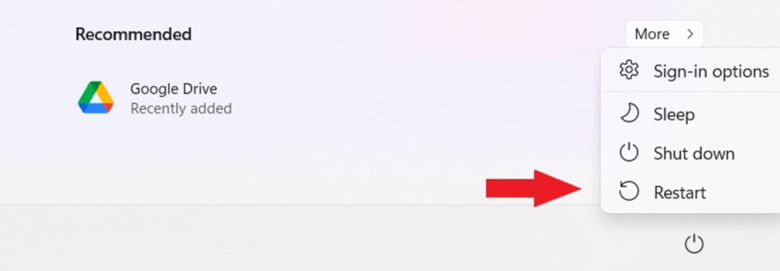
Restart your computer to clear any lingering registry keys or background processes.
-
Download the latest installer directly from the official Google Drive website and run the setup process.
Frequently Asked Questions
Why do some files sync immediately while others display a red X?
Files with a red X are usually restricted by local operating system permissions. If you do not have administrative ownership of a file, or if the file is a restricted system file (like .DS_Store on Mac or desktop.ini on Windows), Google Drive is programmed to intentionally ignore it and will flag it as an error.
Does clearing the DriveFS folder delete files I marked as “Available offline”?
Yes. When you delete the DriveFS cache folder, you are wiping the local temporary storage. While the original files remain perfectly safe in the cloud, any files you previously marked as “Available offline” will need to be re-downloaded to your local drive once you sign back in and re-apply the offline setting.