Google Chrome consumes excessive Random Access Memory due to its underlying multi-process architecture. Unlike older browsers that run entirely within a single system process, Chrome isolates every single tab, plugin, and extension into its own dedicated process sandbox. This prevents a single crashing website from bringing down the entire browser, but it duplicates base memory requirements across every open tab. During our workstation stress tests, we consistently measured Chrome consuming over three gigabytes of RAM for just ten active tabs. Resolving this severe memory bloat requires forcefully suspending background processes and disabling aggressive page pre-fetching algorithms that constantly hoard unused system resources.
Quick Diagnostics to Run First
Check the Windows Task Manager or macOS Activity Monitor before altering browser settings. Press Control, Shift, and Escape simultaneously on Windows to open the Task Manager, or launch Activity Monitor from the Mac Launchpad. Sort the active processes by memory consumption. If you see dozens of individual Google Chrome processes collectively dominating the top of the list, your browser is functioning normally but inefficiently. If a single Chrome process is consuming over two gigabytes by itself, a specific website tab has suffered a severe memory leak, and simply closing that specific tab will instantly free the hostage resources.
Method 1: Enable the Native Memory Saver Feature
Google recently integrated a native performance optimization engine directly into the Chromium architecture. Memory Saver automatically identifies tabs sitting idle in the background and physically unloads them from your active RAM cache, leaving only a static placeholder on your tab bar. When you eventually click back onto the sleeping tab, Chrome rapidly reloads the page from your local storage drive.
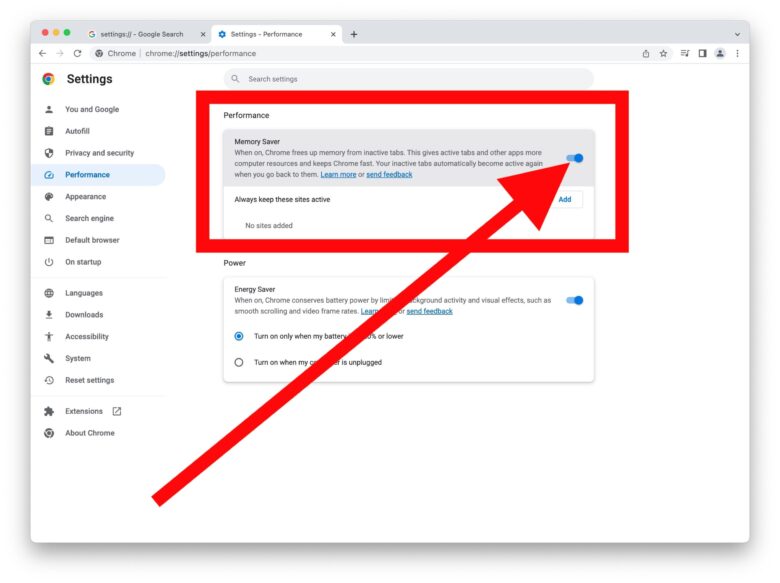
Open Google Chrome and click the three vertical dots located in the top right corner of the browser window. Hover over the Settings option and select Performance from the left sidebar. Locate the toggle switch explicitly labeled Memory Saver and flip it to the on position. You can also specify critical websites, such as your email client or active audio streaming services, in the “Always keep these sites active” list to prevent the engine from accidentally suspending your essential background tasks.
Method 2: Audit Processes via the Chrome Task Manager
Windows and macOS system monitors cannot distinguish which specific website belongs to which Chrome background process. To identify the exact tab or extension causing the memory bloat, you must utilize Chrome’s internal diagnostic utility. This dedicated tool provides a precise breakdown of every kilobyte consumed within the browser environment.
With Chrome open and active, press the Shift and Escape keys simultaneously on your keyboard to instantly launch the Chrome Task Manager. If you are using a Mac, click the Window menu at the very top of your screen and select Task Manager. Click the Memory footprint column header to sort the list from highest consumption to lowest. Identify any single tab or extension consistently drawing over five hundred megabytes of RAM. Single-click the offending item to highlight it, then click the End process button located in the bottom right corner of the window to instantly kill the task and reclaim your hardware resources.
Method 3: Restrict or Remove Background Extensions
Browser extensions are essentially miniature software applications running persistently alongside your web browser. Grammar checkers, ad blockers, and coupon finders constantly scan every single web page you load, commanding significant memory resources to maintain their background surveillance. An accumulation of just five or six active extensions can easily double Chrome’s baseline RAM requirements.
Click the puzzle piece icon located in the top right corner of your Chrome toolbar and select Manage Extensions. Alternatively, type “chrome://extensions” directly into the URL bar and press Enter. Review every installed extension carefully. Use the toggle switch located in the bottom right corner of each extension card to disable any tool you do not use on a daily basis. Disabling an extension instantly unloads its code from your active memory while keeping it installed for future use. For extensions you absolutely no longer need, click the Remove button to completely purge their configuration files from your local storage.
Method 4: Disable Preload Pages and Background Apps
Chrome attempts to artificially accelerate your browsing experience by secretly loading websites in the background before you even click a link. The browser attempts to predict your next action and dedicates RAM to rendering the destination page invisibly. Furthermore, Chrome defaults to allowing certain web applications to continue running in your system tray even after you have completely closed all visible browser windows.
To disable the aggressive pre-fetching algorithm, click the three vertical dots, select Settings, and navigate to the Privacy and security tab. Click on Cookies and other site data. Scroll down and toggle off the setting labeled “Preload pages for faster browsing and searching.” Next, navigate to the System tab on the left sidebar. Toggle off the setting labeled “Continue running background apps when Google Chrome is closed.” These two adjustments ensure that Chrome only consumes memory for the exact pages currently visible on your screen, and completely relinquishes all hardware resources the moment you exit the application.
Frequently Asked Questions
Why does Chrome open so many background processes for just one tab? Chrome isolates the core rendering engine, the graphics processor communication, the audio output, and every individual extension into separate sandbox environments. If you open a single web page containing an embedded YouTube video, three banner advertisements, and a comment section script, Chrome assigns a dedicated background process to each of those specific elements. This guarantees that if a single advertisement crashes due to poorly written code, only that specific process dies, leaving the rest of the web page and the browser window completely stable and functional.
Does using a third-party ad blocker reduce or increase RAM usage? Utilizing a highly optimized, lightweight ad blocker like uBlock Origin significantly reduces overall RAM consumption. While the extension itself requires a small baseline amount of memory to operate, it violently prevents heavily bloated tracking scripts, video advertisements, and interactive pop-ups from ever downloading to your machine. The memory saved by blocking these intensive elements vastly outweighs the minimal hardware cost of running the extension itself.
Is hardware acceleration responsible for high memory consumption? Hardware acceleration forces Chrome to offload complex visual rendering tasks, such as playing high-definition video or scrolling through complex animations, directly to your dedicated graphics card rather than relying entirely on your central processor. While this drastically improves visual performance and saves CPU cycles, it frequently forces the browser to reserve larger blocks of system RAM as a communication buffer between the processor and the graphics card. If you possess a low-end machine with integrated graphics and minimal RAM, disabling hardware acceleration in the System settings menu can sometimes yield a more stable browsing experience.