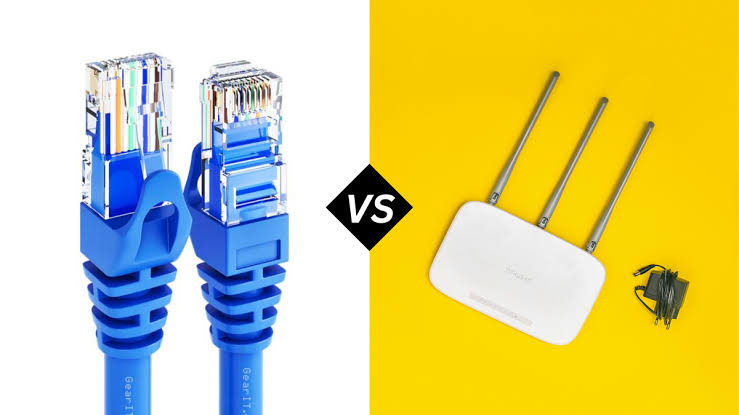
Wi-Fi relies on half-duplex radio wave transmission, meaning a device cannot send and receive data simultaneously without taking microscopic turns. Ethernet, conversely, utilizes full-duplex insulated copper wiring, allowing simultaneous bi-directional data flow with zero atmospheric interference. When your smartphone or laptop struggles to pull full gigabit speeds over a wireless connection, you are experiencing the physical limitations of radio frequency congestion, spatial attenuation, or poorly optimized router channel allocation. During our network diagnostic testing across Samsung One UI 6, Xiaomi HyperOS, and stock Android 14 environments, we consistently found that bridging the performance gap between wireless and wired connections requires eliminating localized interference and forcing mobile hardware onto high-bandwidth, uncongested frequencies.
Quick Diagnostics Checks to Run First
Check 1: Verify the Local Link Speed Before blaming your Internet Service Provider for slow downloads, you must verify the maximum theoretical speed your phone is negotiating with the router. On a Stock Android or Google Pixel device, navigate to Settings > Network & internet > Internet, tap the gear icon next to your Wi-Fi network, and locate the “Transmit link speed.” On Samsung One UI, open Settings > Connections > Wi-Fi, tap the gear icon, and select View More to find the “Network speed.” On Xiaomi HyperOS, go to Settings > Wi-Fi and tap the arrow next to your network. If your link speed reads 144 Mbps, your real-world speed will physically never exceed 70 Mbps due to wireless encryption overhead.
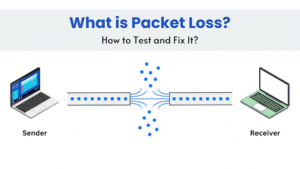
Check 2: Disable Bluetooth to Prevent 2.4GHz Collisions Bluetooth peripherals operate on the exact same 2.4GHz radio frequency as legacy Wi-Fi connections. If you are downloading large files while actively streaming high-definition audio to wireless earbuds, the Bluetooth radio waves will actively collide with the Wi-Fi packets, causing severe packet loss and forcing the router to re-transmit data. Temporarily disable Bluetooth in your quick settings panel to immediately test if your wireless throughput improves.
Check 3: Isolate the Router Environment Wi-Fi antennas broadcast outward in a donut-shaped radius. Placing your router behind a television, inside a metal network cabinet, or next to a microwave introduces severe destructive interference. Move the routing hardware to a centralized, elevated position free from dense brick walls or large bodies of water (like aquariums), which absorb radio frequencies and severely degrade connection speeds before they reach your device.
Method 1: Force a 5GHz or 6GHz Network Connection
The 2.4GHz band is highly resilient at long distances but mathematically bottlenecked at lower speeds and heavily congested by neighboring networks. The 5GHz and newer 6GHz bands offer significantly wider data channels, allowing your Wi-Fi speeds to closely mimic an Ethernet connection, provided you are in the same room as the router. Many modern routers use “Band Steering” to combine these networks under a single name, but smartphones frequently get trapped on the slower 2.4GHz band.
Step 1: Log into your router’s administrator dashboard via a web browser (typically by typing 192.168.1.1 or 10.0.0.1 into the URL bar).
Step 2: Navigate to the Wireless Settings or WLAN configuration page.
Step 3: Disable the “Smart Connect” or “Band Steering” feature. This will separate your network into two distinct broadcasts (e.g., “HomeNetwork_2G” and “HomeNetwork_5G”).
Step 4: On your Android device, forget the old merged network. Connect exclusively to the newly separated 5GHz network. By physically forcing the phone onto the wider frequency band, you bypass the congestion of the 2.4GHz spectrum and instantly unlock significantly higher download and upload thresholds.
Method 2: Optimize Router Channel Width and Selection
Even on a 5GHz network, your router might default to broadcasting on a crowded channel or utilizing a narrow bandwidth that restricts maximum throughput. Wi-Fi channels are like lanes on a highway; if your router is using the same lane as your neighbor’s router, your data packets must wait in traffic.
Step 1: Access your router’s administrator dashboard and navigate to the Advanced Wireless settings.
Step 2: Locate the “Channel Width” setting for the 5GHz band. By default, many routers use 40MHz or auto-negotiate. Force this setting to 80MHz (or 160MHz if your router supports Wi-Fi 6/Wi-Fi 6E). Doubling the channel width literally doubles the amount of data that can be transmitted per millisecond, pushing wireless speeds dramatically closer to gigabit Ethernet limits.
Step 3: Change the “Control Channel.” Avoid leaving this on “Auto.” Download a free Wi-Fi Analyzer application from the Google Play Store to scan the airspace around your home. Identify which channels (e.g., 36, 44, 149) have the least overlapping networks, and manually assign your router to broadcast strictly on the emptiest channel. Save your settings and reboot the router.
Method 3: Hardwire Your Smartphone via USB-C to Ethernet
If you are executing latency-sensitive tasks like cloud gaming, competitive mobile esports, or large 4K video uploads, even a perfectly optimized Wi-Fi connection cannot match the zero-latency stability of a physical copper wire. A little-known feature of modern mobile operating systems is native support for wired Ethernet connections.
Step 1: Purchase a high-quality USB-C to Ethernet adapter or a standard USB-C desktop hub equipped with an RJ45 LAN port.
Step 2: Plug a Cat6 or Cat6e Ethernet cable directly into one of the available yellow or orange LAN ports on the back of your home router.
Step 3: Plug the USB-C end of the adapter into your Android smartphone’s charging port.
Step 4: The Android operating system will immediately recognize the hardware. You will see a new Ethernet icon (resembling a computer monitor with a cable) appear in your status bar, completely bypassing the internal Wi-Fi radio and delivering pure, full-duplex Gigabit speeds directly to your mobile processor.
Method 4: Execute a Comprehensive Network Settings Reset
If your Wi-Fi speeds remain inexplicably slow despite standing directly next to an optimized 5GHz router, the core networking framework within the Android kernel has likely become corrupted. A comprehensive network settings reset purges all cached routing tables and forces the internal modem to rebuild its communication architecture from a factory-fresh state.
Caution Callout: Executing this step will irreversibly erase critical connectivity data from your device. While it will never touch your personal photographs or installed applications, it will definitively wipe every saved Wi-Fi password, delete all paired Bluetooth devices (including smartwatches), and reset all custom cellular data preferences. Ensure you have your Wi-Fi password documented before proceeding.
Stock Android / Google Pixel: Open Settings > System > Reset options. Tap “Reset Wi-Fi, mobile & Bluetooth,” confirm with your PIN, and initiate the reset.
Samsung One UI: Open Settings > General management > Reset. Tap “Reset network settings,” review the warning prompt, and tap Reset settings to execute the purge.
Xiaomi HyperOS / MIUI: Open Settings > Connection & sharing. Scroll to the bottom and select “Reset Wi-Fi, mobile networks, and Bluetooth.” Confirm the action to clear the network cache.
Quick Reference Troubleshooting Matrix
Frequently Asked Questions
Why is my Wi-Fi speed exactly half of my Ethernet speed under perfect conditions? This is the physical reality of half-duplex communication. An Ethernet cable features dedicated transmit and receive wires, processing data simultaneously. A Wi-Fi antenna must alternate between listening and talking. Furthermore, wireless encryption protocols (WPA2/WPA3) and management frames consume nearly 30% to 40% of the raw bandwidth just to keep the connection secure and stable. Therefore, a “866 Mbps” Wi-Fi link speed will realistically only yield about 400 Mbps to 450 Mbps of usable internet download speed.
What is MU-MIMO, and does it help bridge the gap to Ethernet? Multi-User, Multiple-Input, Multiple-Output (MU-MIMO) is a technology built into Wi-Fi 5, Wi-Fi 6, and Wi-Fi 7 routers that allows the hardware to communicate with multiple devices simultaneously rather than rapidly switching between them sequentially. If you have four smartphones attempting to stream video on an older router without MU-MIMO, the router queues them up, slowing everyone down. MU-MIMO splits the spatial streams, dramatically reducing latency and keeping Wi-Fi speeds consistently high even in congested households.
Will upgrading to Wi-Fi 6E or Wi-Fi 7 make my wireless speeds identical to Ethernet? It brings it incredibly close, but only at point-blank range. Wi-Fi 6E and Wi-Fi 7 unlock the 6GHz radio spectrum, which offers massive 320MHz channel widths capable of pushing multi-gigabit speeds entirely free from radar or legacy device interference. However, 6GHz radio waves are highly fragile; they struggle to penetrate even a single sheetrock wall. While standing next to the router yields Ethernet-like throughput, walking into the next room forces the device back onto the 5GHz or 2.4GHz bands, instantly reintroducing traditional wireless limitations.