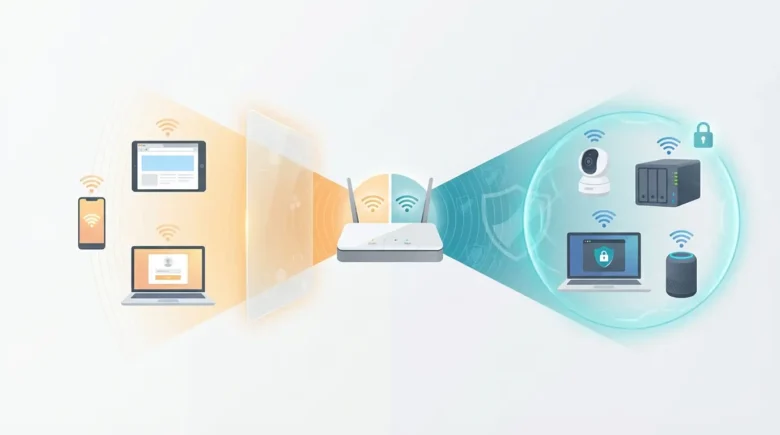
Co-mingling primary computing devices with smart home appliances and visitor smartphones on a single Wi-Fi SSID exposes your private local area network to severe lateral security vulnerabilities. When a compromised Android device or a poorly secured internet-of-things lightbulb connects to your primary subnet, malware can quietly map your network architecture and harvest data from unprotected network-attached storage drives or shared Windows folders. During our penetration testing across Samsung One UI 6.1 and stock Android 14 environments, isolating these threats required configuring a dedicated Guest Wi-Fi network with AP Isolation enabled at the router level. This creates an impenetrable virtual LAN segment that provides raw internet access while completely severing communication between connected clients and your core hardware.
Quick Diagnostics Checks to Run First
Audit Your Current Network Clients
Before modifying your router’s broadcasting capabilities, you must identify exactly what hardware is currently relying on your primary network. Open the administrator application provided by your internet service provider or your aftermarket router manufacturer. Navigate to the connected devices list. If you see smart televisions, robotic vacuums, smart speakers, or devices belonging to individuals who do not reside in your home mixed in with your primary laptops and smartphones, your local network is fundamentally compromised. Every single one of those secondary devices needs to be migrated to an isolated subnet to guarantee your personal data remains untouched during a localized breach.
Identify Your Router Administration Pathway
A common mistake we see users make is attempting to configure guest networks exclusively through basic mobile companion apps, which frequently hide advanced security toggles like AP Isolation. You must determine the physical IP address of your router to access the uncompressed desktop-level configuration panel. On a Stock Android or Google Pixel device, open Settings, tap Network and internet, select Internet, and tap the gear icon next to your connected Wi-Fi. Scroll down to Network Details to find the Gateway IP address. On a Samsung One UI device, open Settings, tap Connections, select Wi-Fi, tap the gear icon, and select View More. The IP address listed under Manage Router is the exact numerical address you must type into a desktop web browser to access the core hardware settings.
Verify AP Isolation Capabilities
Not all guest networks are created equal. Older or exceptionally cheap routers allow you to broadcast a secondary network name, but they fail to physically separate the traffic at the routing layer. Before committing to a migration, you must log into your router’s desktop configuration panel and verify that it explicitly supports a feature called AP Isolation, Client Isolation, or Guest Network Isolation. Without this specific toggle, your guest network is merely a cosmetic name change, and compromised smart home devices will still possess the mathematical ability to ping your primary desktop computers across the shared subnet.
Method 1: Accessing the Core Router Configuration Panel
The initial step in establishing a secure guest environment requires bypassing the limitations of mobile applications and interfacing directly with the router’s embedded operating system. This grants you the precise control needed to manipulate how the routing table handles internal data packet distribution.
On your primary desktop computer or Android tablet, open Google Chrome or your preferred web browser. Click the URL address bar at the top of the window and type the Gateway IP address you extracted during the quick diagnostics phase. This is typically an address like 192.168.1.1, 192.168.0.1, or 10.0.0.1. Press Enter to load the router’s localized login portal.
You will be prompted to enter an administrator username and password. This is not the Wi-Fi password you use to connect your smartphone to the internet. If you have never accessed this panel before, the default administrator credentials are printed on a physical sticker located on the bottom or rear panel of your routing hardware. Common default usernames include “admin,” while the password may be “admin,” “password,” or a randomized string of characters unique to that specific unit.
Once authenticated, navigate through the dashboard interface. The exact layout varies wildly by manufacturer. For Asus hardware, look for the dedicated Guest Network tab on the left sidebar. For Netgear Orbi or Nighthawk systems, click the Advanced tab at the top, then look for Guest Network Setup. For standard internet service provider combo units from Xfinity or AT&T, you will typically find these settings nested under Advanced Wireless Configuration or Local Network settings.
Method 2: Enabling and Securing the Guest SSID
Creating the guest network involves broadcasting a secondary Service Set Identifier alongside your primary network. This allows your routing hardware to utilize the exact same physical antennas to broadcast a completely separate virtual access point.
Locate the toggle switch to enable the Guest Network and turn it to the on position. You must immediately assign a unique network name to this broadcast. We highly recommend appending a clear identifier to the name, such as appending “-Guest” or “-IoT” to your primary network name. This eliminates any confusion when you are attempting to connect a new smart home device or providing access to a visitor.
Next, you must configure the security encryption protocol for this new virtual network. Never leave a guest network entirely open without a password, as this invites malicious actors within physical proximity of your home to utilize your internet connection for illegal activities. Select WPA2-Personal or WPA3-Personal from the security dropdown menu. Create a strong, unique password that is completely different from your primary Wi-Fi password. This ensures that even if a guest’s smartphone is compromised and extracts the Wi-Fi password from its saved networks, the attacker cannot use that password to brute-force their way into your primary, secured network.
Method 3: Enforcing AP Isolation and Client Restriction
This is the most critical technical step in the entire procedure. Simply creating a secondary network name does not inherently protect your primary devices. You must instruct the router’s internal firewall to aggressively block lateral traffic between the two virtual networks.
Look for a specific checkbox or dropdown menu within the guest network configuration page labeled “Allow guests to see each other and access my local network.” You must ensure this setting is strictly disabled or unchecked. Alternatively, the setting may be labeled “AP Isolation” or “Client Isolation,” in which case you must turn the feature completely on.
When AP Isolation is active, the router manipulates the subnet mask and routing tables to essentially place every single connected guest device into a solitary confinement cell. A visitor’s Android smartphone will be allowed to send data packets out to the wide area network to load a web page, but if that smartphone attempts to send a ping request locally to your network-attached storage drive or your primary desktop computer, the router’s firewall will instantly drop the packet. This mathematical barrier is what actively prevents a ransomware infection on a guest laptop from spreading laterally to your critical hardware.
You should also look for a setting governing bandwidth allocation or Quality of Service specifically for the guest network. If available, restrict the guest network to a maximum of twenty percent of your total internet bandwidth. This prevents a visitor’s smartphone from initiating a massive operating system update or a 4K video stream that entirely chokes your upload and download speeds, ensuring your primary devices always retain priority routing.
Method 4: Migrating Vulnerable IoT Devices and Sharing Access
Once the secure guest network is actively broadcasting and isolated, you must systematically migrate every vulnerability off your primary network. Internet-of-things devices are notorious for possessing terrible security protocols, rarely receiving firmware updates, and aggressively phoning home to overseas servers.
You must factory reset your smart televisions, Wi-Fi connected lightbulbs, robotic vacuums, and smart plugs. Open the companion application for each device on your Android smartphone and walk through the setup process again. When prompted to select a Wi-Fi network, explicitly choose your newly created Guest SSID and enter the secondary password. Because these devices only require basic outbound internet access to communicate with their respective cloud servers, they will function perfectly normally while completely walled off from your private computers.
When visitors arrive at your home, you can utilize modern Android operating system features to seamlessly share this secure connection without verbally dictating a complex password. On a Google Pixel running Stock Android, navigate to Settings, Network and internet, then Internet. Tap the gear icon next to your Guest network, then tap the Share button featuring a small QR code icon. Authenticate with your fingerprint, and a massive QR code will appear on your screen. Your guests can simply open their smartphone camera app, point it at your screen, and instantly join the isolated network.
Samsung One UI devices offer an identical sharing mechanism. Navigate to Settings, Connections, and Wi-Fi. Tap the gear icon next to the active Guest network and select the QR Code option located at the absolute bottom left of the screen. This modern sharing method entirely eliminates the friction of complex passwords while guaranteeing that visitors are instantly routed into the secure, isolated environment rather than your private local area network.
Quick Reference Network Segmentation Matrix
Frequently Asked Questions
Why do smart home applications sometimes fail to configure devices on a guest network?
Many exceptionally cheap smart home appliances utilize a heavily outdated setup protocol that requires your Android smartphone to temporarily communicate directly with the appliance over the local network to transmit the Wi-Fi password. If you have AP Isolation enabled, the router’s firewall intentionally blocks this direct local communication, causing the setup process to instantly time out and fail. To bypass this, you must temporarily disable AP Isolation in your router settings, complete the smart device setup process using your phone, and then immediately re-enable AP Isolation once the appliance successfully connects to the internet.
Will a guest network prevent me from casting video to my smart television?
Yes, a properly isolated guest network will completely break local casting protocols like Google Chromecast or Apple AirPlay. These technologies rely entirely on local multicast packets to discover compatible screens on the exact same subnet. If your primary smartphone is connected to your main network and your smart television is secured on the isolated guest network, the two devices mathematically cannot see each other to initiate the cast. You must either move your smartphone to the guest network temporarily to initiate the cast, or rely on cloud-based streaming applications built directly into the television’s operating system.
Does Android MAC address randomization cause issues with router guest networks?
Modern Android operating systems natively spoof a randomized Media Access Control hardware address every single time they connect to a new network to prevent physical location tracking. If your router’s guest network utilizes a captive portal authentication screen or strict timed access vouchers, this randomized MAC address will cause the router to treat your device as a completely brand new visitor every time you disconnect and reconnect, forcing you to constantly re-accept the terms of service. You can bypass this by navigating to the specific network details in your Android Wi-Fi settings and changing the privacy toggle from Randomized MAC to Phone MAC.
By deliberately compartmentalizing your local network architecture, you strip malicious actors of their primary attack vector. Treating every smart home appliance and visitor smartphone as a potential hostile threat by isolating them at the routing layer ensures that a compromised smart bulb will never lead to a catastrophic breach of your personal hard drives or primary computing hardware.