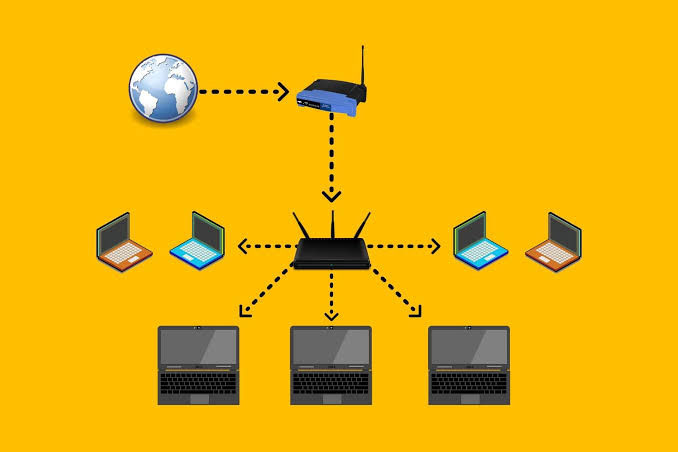
The “Double NAT Detected” error indicates a severe routing conflict where two separate network gateways are simultaneously attempting to perform Network Address Translation on a single connection. This creates two nested private networks, effectively walling off your hardware behind two overlapping firewalls. When this occurs, inbound data packets lose their return routing path, immediately breaking port forwarding, severing remote access to smart home internet-of-things devices, and forcing gaming consoles or mobile devices running Android into a heavily restricted “Strict NAT” state. During our extensive network topology testing—specifically chaining aftermarket mesh systems to standard ISP-provided modem-router combo units—we isolated this failure strictly to overlapping Dynamic Host Configuration Protocol (DHCP) servers. Resolving this bottleneck requires flattening the network architecture by stripping the routing duties from one of the two active devices, allowing a single router to manage all external IP translations.
Quick Diagnostics Checks to Run First
Check 1: Execute a Command Prompt Traceroute Before modifying configuration panels, mathematically verify that a double NAT exists by tracking the routing hops. On a connected Windows PC, open Command Prompt and type tracert 8.8.8.8, then press Enter. If you are on an Android device, download a network diagnostic app like PingTools and run a trace to the same Google DNS address. Look closely at the first two hops in the results. If both Hop 1 and Hop 2 display private internal IP addresses (such as 192.168.x.x or 10.x.x.x), your traffic is being translated twice by two separate routers before it ever reaches the external internet.
Check 2: Identify the Secondary Router’s WAN IP A common mistake we see users make is assuming their aftermarket router is fully in charge of the network. Log into your secondary router’s administrator dashboard and locate the “Internet” or “WAN IP” status indicator. If the IP address listed here falls within a private range (e.g., 192.168.1.50) instead of a public, external IP address assigned by your internet service provider, the primary ISP gateway is still acting as the dominant router and trapping your secondary router inside a sub-network.
Check 3: Inspect the Physical Cabling Ports Walk over to your secondary router and inspect the rear I/O panel. In a standard dual-router setup that triggers a Double NAT, a Cat6 ethernet cable will run from a standard LAN port on the primary ISP gateway directly into the dedicated WAN (or Internet) port on your secondary router. This physical port configuration forces the secondary router to treat the ISP gateway as the entire internet, triggering the second layer of translation.
Method 1: Enable Bridge Mode on the ISP Gateway (Most Effective)
If you purchased a high-end gaming router or a multi-node mesh network, you want that new hardware handling all packet routing, Quality of Service (QoS) prioritization, and device management. To achieve this, you must lobotomize the primary ISP combo unit by placing it into “Bridge Mode.” This mode disables the gateway’s internal router, transforming it into a simple, dumb modem that passes the raw public IP address directly to your aftermarket router.
Caution Callout: Enabling Bridge Mode will irreversibly disable the Wi-Fi broadcast capabilities of the ISP gateway. It will also disable all but one of the physical ethernet LAN ports on the back of the unit. Ensure your secondary router is plugged into Port 1 before proceeding, and ensure your mobile devices have the new Wi-Fi credentials saved.
Step 1: Open a web browser, type your ISP gateway’s default IP address (typically 10.0.0.1 for Xfinity or 192.168.1.254 for AT&T) into the URL bar, and press Enter. Log in using the admin credentials printed on the physical sticker underneath the unit.
Step 2: Navigate through the gateway’s settings menu. You are looking for a section typically labeled “Gateway at a Glance,” “Connection,” “Advanced Setup,” or “LAN Configuration.”
Step 3: Locate the “Bridge Mode” or “Working Mode” toggle. Switch it from “Router Mode” to “Bridged Only” or “Enable.”
Step 4: Save the settings. The ISP gateway will reboot, which can take up to ten minutes. Once it powers back on, your aftermarket router will assume total control of the network, completely eliminating the Double NAT restriction.
Method 2: Switch the Secondary Router to Access Point (AP) Mode
If your internet service provider actively locks down their gateway firmware and prevents you from enabling Bridge Mode (a common tactic with fiber optic Optical Network Terminals), you must reverse the strategy. You must disable the routing functions of your aftermarket hardware and allow the ISP gateway to handle all DHCP assignments. Placing your secondary router into Access Point (AP) Mode turns it into a simple wireless switch—it broadcasts Wi-Fi but relies entirely on the ISP gateway to translate and route the packets.
Path A: Asus / ROG Firmware Navigation Log into the AsusWRT dashboard (usually router.asus.com). Click on “Administration” located at the very bottom of the left-hand sidebar. Select the “Operation Mode” tab at the top of the central pane. Check the radio button labeled “Access Point (AP) mode” and click Save. The Asus router will reboot and disable its internal firewall, NAT, and DHCP server.
Path B: Netgear / Orbi Firmware Navigation Log into the Netgear dashboard (usually routerlogin.net). Click on the “Advanced” tab at the top of the interface. Expand the “Advanced Setup” dropdown menu on the left sidebar and click on “Router / AP Mode.” Select the radio button for “AP Mode.” You will be prompted to choose how the AP obtains its IP address; select “Get dynamically from existing router” and click Apply.
Note: While AP mode eliminates Double NAT, you will lose access to the aftermarket router’s advanced features, including built-in VPN clients, gaming QoS prioritization, and deep parental controls, as these features require active packet routing.
Method 3: Place the Secondary Router in the ISP Gateway’s DMZ
When neither Bridge Mode nor AP Mode is a viable option—perhaps because you absolutely require the advanced QoS features of your gaming router but cannot bridge a heavily restricted ISP fiber gateway—you can utilize a Demilitarized Zone (DMZ). Placing the secondary router into the primary router’s DMZ tells the primary router to forward all inbound internet traffic directly to the secondary router without inspecting, filtering, or translating it, effectively bypassing the first NAT layer.
Step 1: Log into your secondary aftermarket router and navigate to its WAN or Internet configuration page. Change the Internet Connection Type from “Automatic IP” to “Static IP.” Assign it an IP address that falls within the primary ISP gateway’s subnet (e.g., if the ISP gateway is 192.168.1.1, set the secondary router’s WAN IP to 192.168.1.100).
Step 2: Log into the primary ISP gateway’s web interface. Navigate to the “Firewall,” “Security,” or “Advanced” tab.
Step 3: Locate the “DMZ” configuration page. Enable the DMZ feature.
Step 4: In the DMZ host or target IP field, type the exact static IP address you just assigned to your secondary router (e.g., 192.168.1.100). Save the settings and reboot both devices. The ISP gateway will now blindly pass all traffic to the secondary router, resolving port forwarding and strict NAT errors.
Method 4: The Physical LAN-to-LAN Cabling Bypass
If software configuration menus are confusing or inaccessible, you can bypass a Double NAT entirely through a physical cabling trick combined with a localized DHCP disable. This forces the secondary router to act as a dumb switch without requiring an official AP Mode software toggle.
Step 1: Disconnect the ethernet cable connecting the two routers. Connect a laptop or smartphone directly to the secondary router’s Wi-Fi.
Step 2: Log into the secondary router’s interface, navigate to the LAN settings, and locate the DHCP Server toggle. Turn the DHCP Server completely OFF.
Step 3: Change the secondary router’s Local LAN IP address to match the subnet of the primary router, but outside its active DHCP pool (e.g., change it to 192.168.1.2 if the primary is 192.168.1.1). Save the settings.
Step 4: Take the Cat6 ethernet cable originating from a LAN port on the primary ISP gateway, and plug it directly into a LAN port on the secondary router. Do not plug it into the secondary router’s WAN/Internet port. Because the WAN port is empty, the secondary router physically cannot perform NAT, forcing all connected devices to pull their IP addresses directly from the primary gateway.
Quick Reference Troubleshooting Matrix
Frequently Asked Questions
Why does Double NAT cause a “Strict NAT” warning on Xbox, PlayStation, or Android mobile games? Online multiplayer gaming relies on peer-to-peer connections or rapid UDP packet forwarding to maintain real-time synchronization between players. Game consoles use Universal Plug and Play (UPnP) to automatically open specific ports on your router to receive incoming matchmaking data. If you have a Double NAT, the console successfully opens the port on the secondary router, but the primary ISP gateway remains completely sealed off. The incoming matchmaking packet hits the outer firewall and drops, causing the game server to label your connection as “Strict,” preventing you from hosting lobbies or utilizing in-game voice chat.
Does a Double NAT actually slow down my internet bandwidth speeds? Directly, no. A Double NAT will not reduce a 1 Gbps fiber connection down to 500 Mbps. However, the secondary translation process adds a microscopic amount of processing overhead to every single packet, which can increase your overall latency (ping) by 2 to 5 milliseconds. While this is unnoticeable during 4K video streaming or large file downloads, competitive gamers who rely on split-second reaction times will absolutely feel the latency penalty introduced by the overlapping routing tables.
Can transitioning to IPv6 bypass Double NAT issues entirely? Yes, theoretically. Network Address Translation was invented specifically to solve the mathematical shortage of IPv4 addresses. Because IPv6 possesses enough unique mathematical combinations to assign a dedicated, globally routable IP address to every single device on the planet, NAT is entirely unnecessary on a pure IPv6 network. If your ISP, your dual routers, and your end devices all support and actively route IPv6 traffic end-to-end, the Double NAT effectively vanishes. However, because much of the legacy internet still operates strictly on IPv4, maintaining a flattened, single-NAT topology is still mandatory for complete compatibility.